
Goal: See where tasks appear, complete them (with forms and files), and track case progress—on web or mobile.
This article is written for regular users that must complete tasks and fill forms in Gluu.
Where to find tasks #
Tasks show to users with the right role at the right time. Case-based tasks can also be assigned to specific users.
You can find your tasks in the following places:
In work overviews #
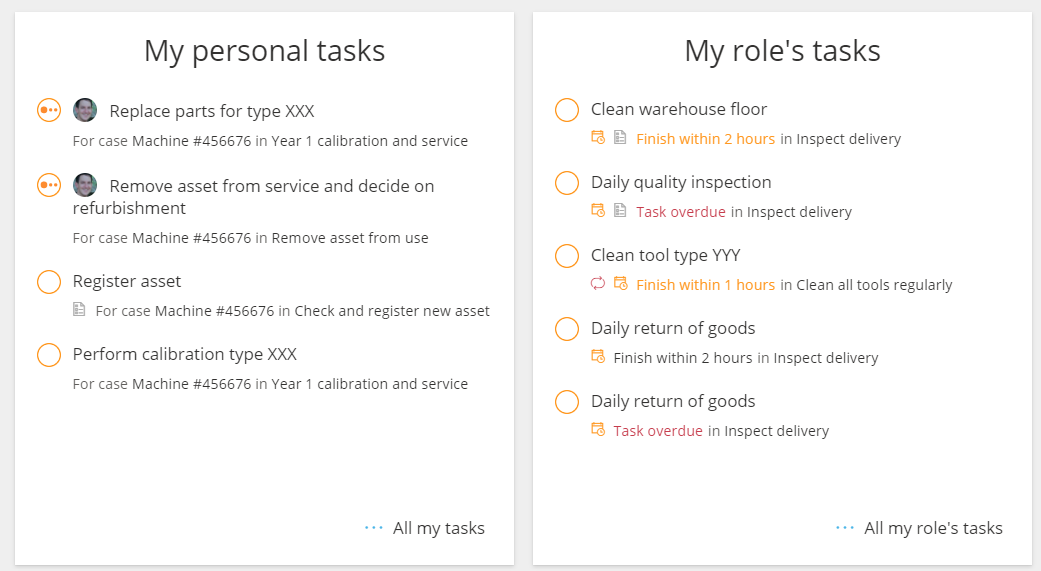
Live scheduled tasks are also highlighted on My overview:
In the left menu #
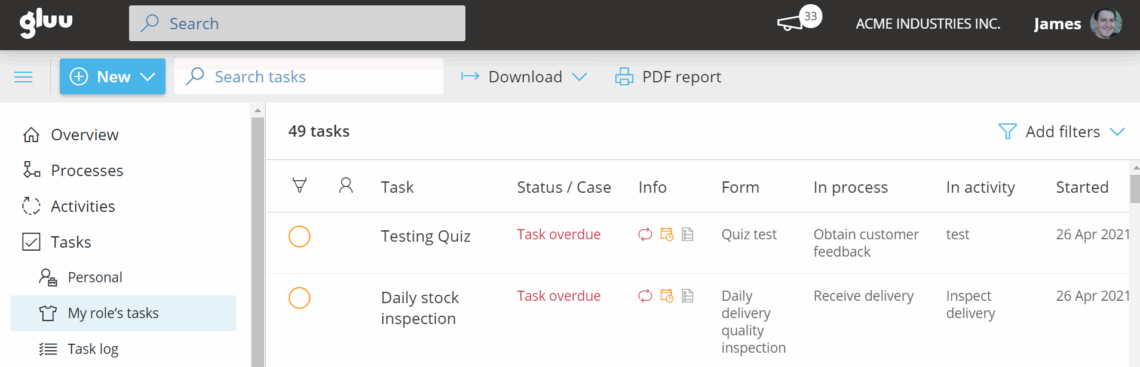
Tasks > My tasks and Tasks > My role’s tasks in the left menu:
In the mobile app #
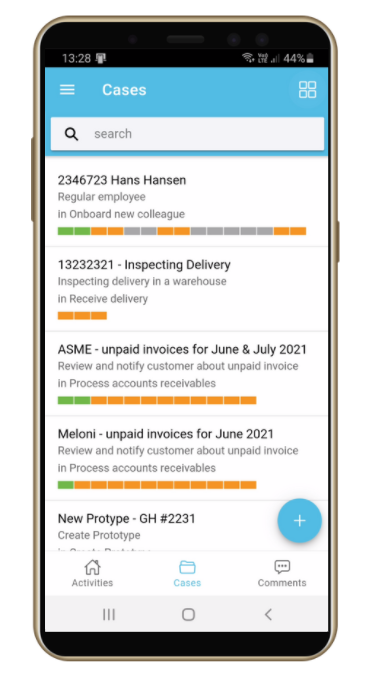
Via Gluu’s Android/iOS apps that let users focus on tasks and work instructions.
See only relevant activities, instructions, tasks, and complete forms directly on mobile. Read Mobile app basics for more information.
In case overviews #
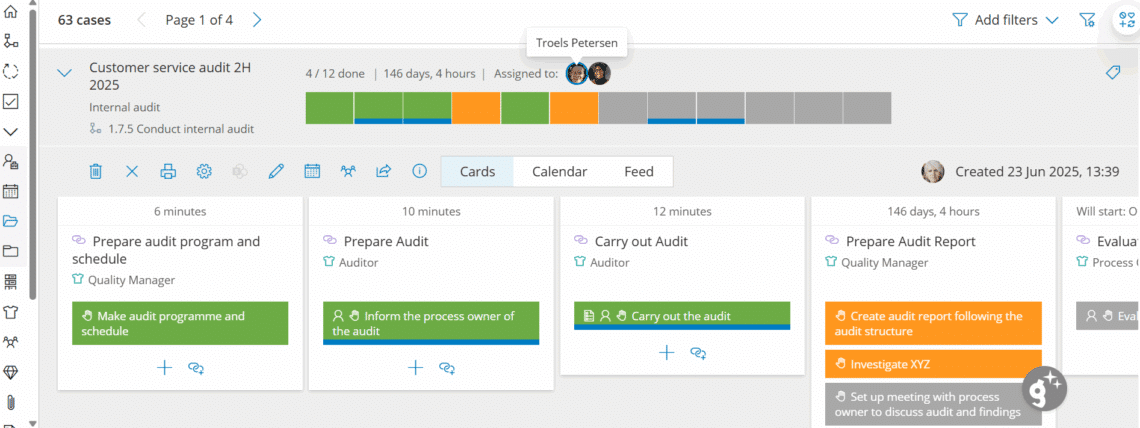
On the case Case overview you will see all cases visible to you. On My overview you’ll see active cases you’re part of (because tasks need your role). Click a case to view:
- Case overview (unfolded): activities and tasks.
- Calendar: time spent. Completed tasks (green) = activation to completion; Open tasks (orange) = time since activation.
- Feed: all comments during the case.
- Avatar: Hover over an avatar to see tasks assigned to that specific user.
Work with tasks #
When a task starts (at its scheduled time or when case logic triggers it) it shows on the list of tasks.
To pick or complete the task:
- Click the task.
- Select the play button to set the task to In progress or click Submit to complete.
- Select Not applicable if needed by clicking the arrow next to Submit.
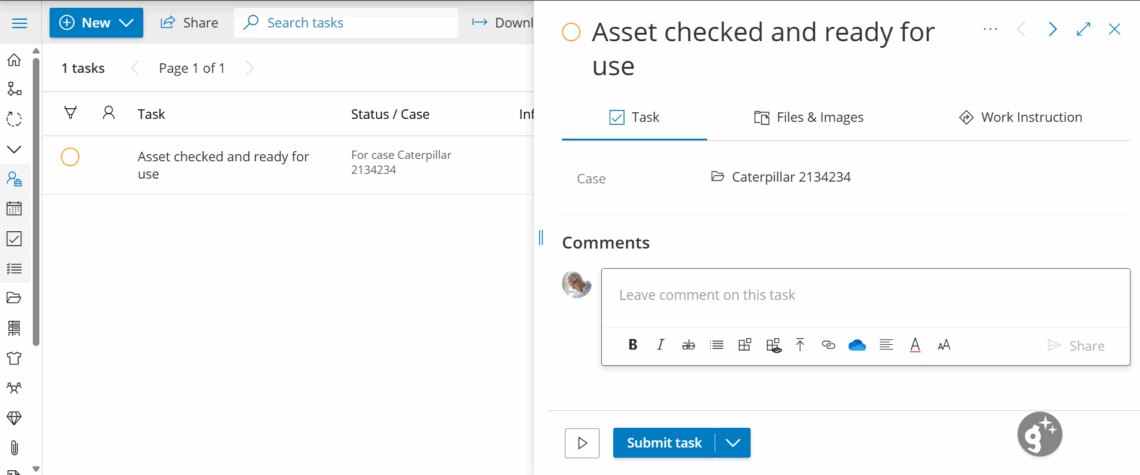
If you choose the play button, the task will automatically be assigned to you and show to others as in progress.
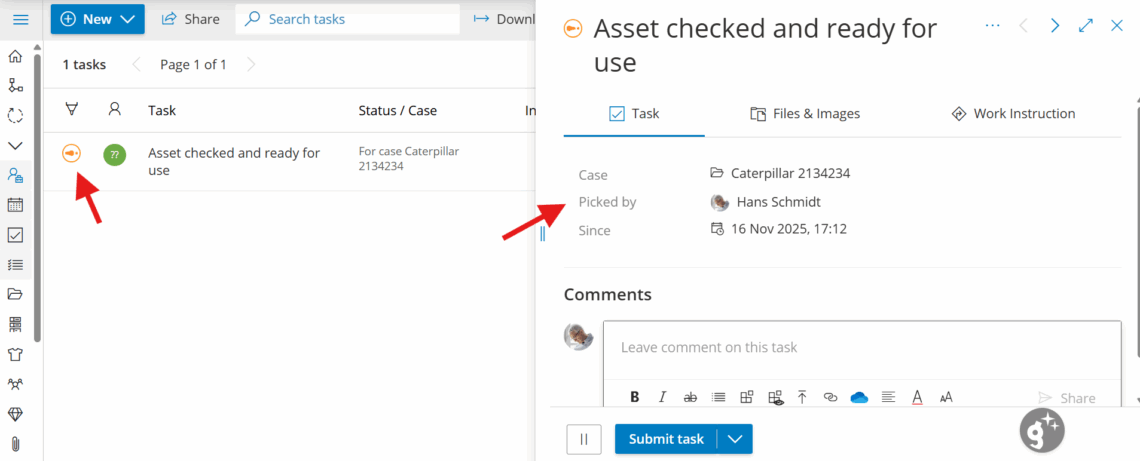
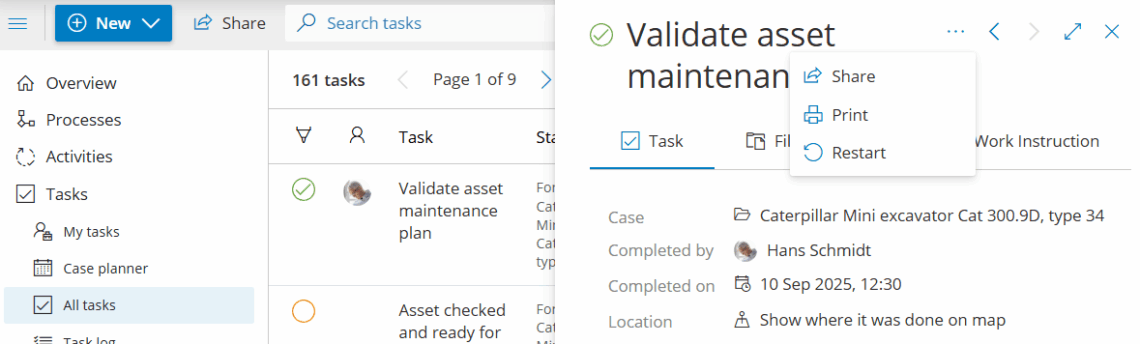
Once completed, clicking the task will show you the details of who finished the task and when.
Restart a completed task #
- Open the completed task.
- Click Restart.
- Update the information.
- Complete the task again.
Attach or remove photos/files #
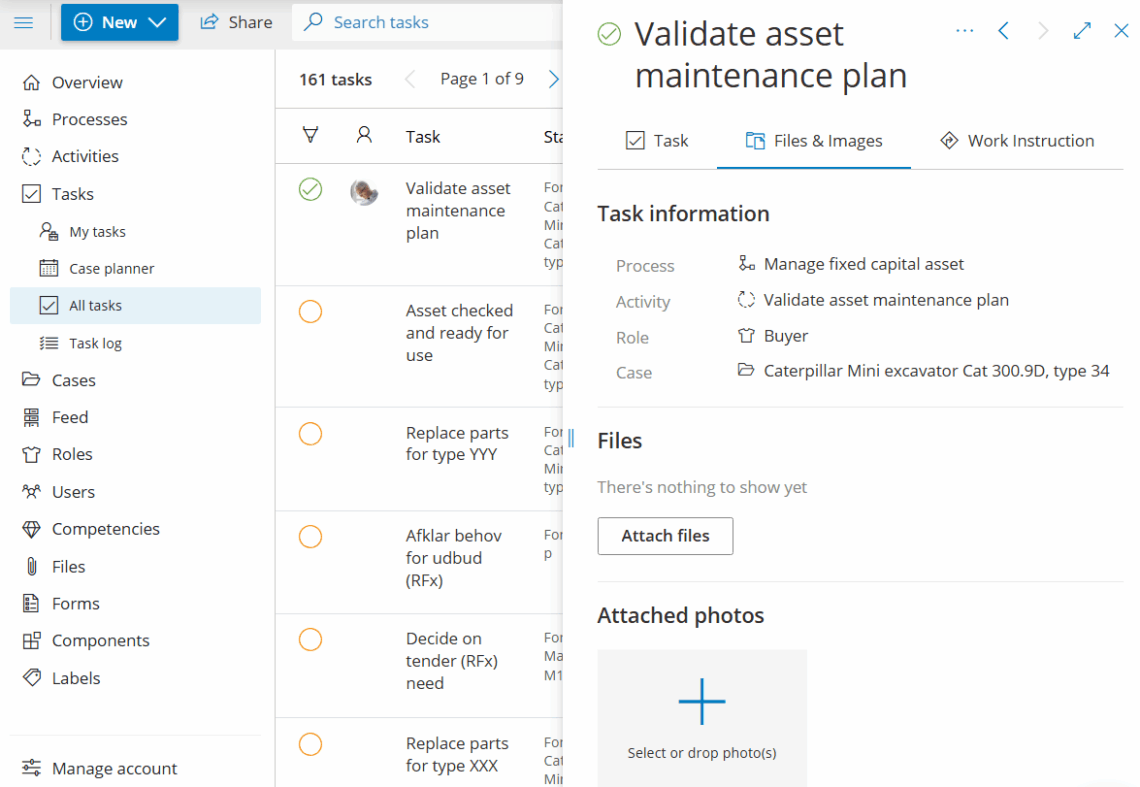
- Open the task > Files and images.
- Click Attach files or Select or drop photos (mobile: choose from library or take photo).
- To remove, click the trash icon on the file/photo or open Attach files and deselect.
- You can add/remove files even after completion.
Photos added during completion appear in case reports. Learn more: Reporting on tasks and cases.


