
Goal: Use the Gluu Explorer to see how processes, activities, components and forms connect — from a high-level view to specific links.
If you want to know how processes are linked, where components are used, or where an activity appears in multiple processes, the Gluu Explorer gives you that overview. You find the Explorer in the left-hand menu under ‘Processes’.
Each process, activity and form also has its own Explorer entry in the left-hand menu. This lets you focus on a specific asset.
Account-level view #
Now, let’s start with the account-level view.

The top level of the Explorer shows a full overview of all connections in your Gluu account. Click and zoom to inspect any area in more detail. This helicopter view looks at everything at once — not just a single page or filter result.
Often you need a specific connection, for example:
- What other processes link to a certain process.
- How many processes reuse a specific activity.
- Where a component is used.
- Which tasks a form is used for.
Use settings, the highlight search bar and filters to focus on what matters.
- Open Explorer from the left menu under Processes.
- Type in the highlight search bar to focus on a name.
- Apply filters (e.g. component, label, form) to narrow results.
- Click a node to center it and see its direct connections.
- Zoom or drag to explore related links further out.
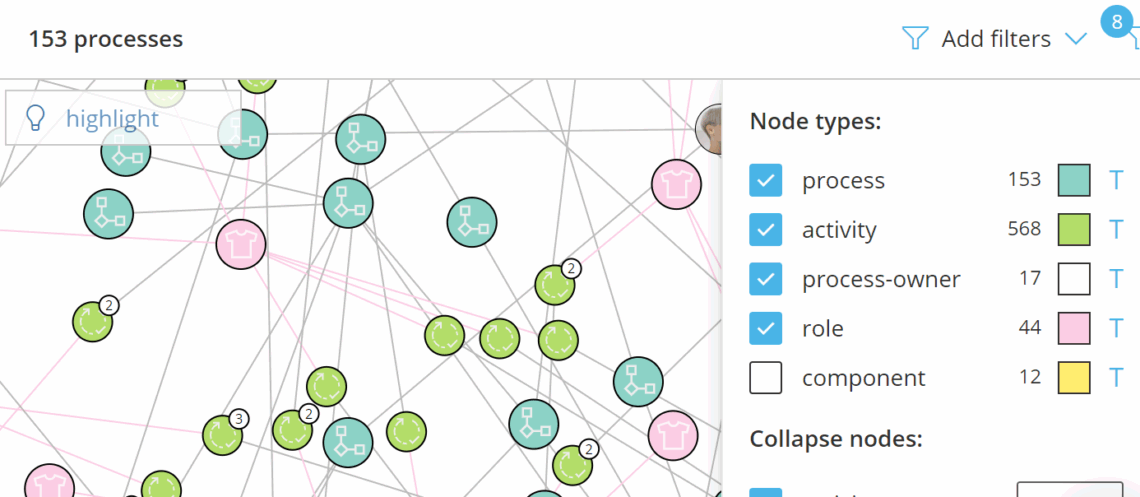
Example: To see how a component links to other elements, filter by that component. The Explorer shows the component at the center and its immediate activity connections. Move outward to reveal more links (e.g. processes).
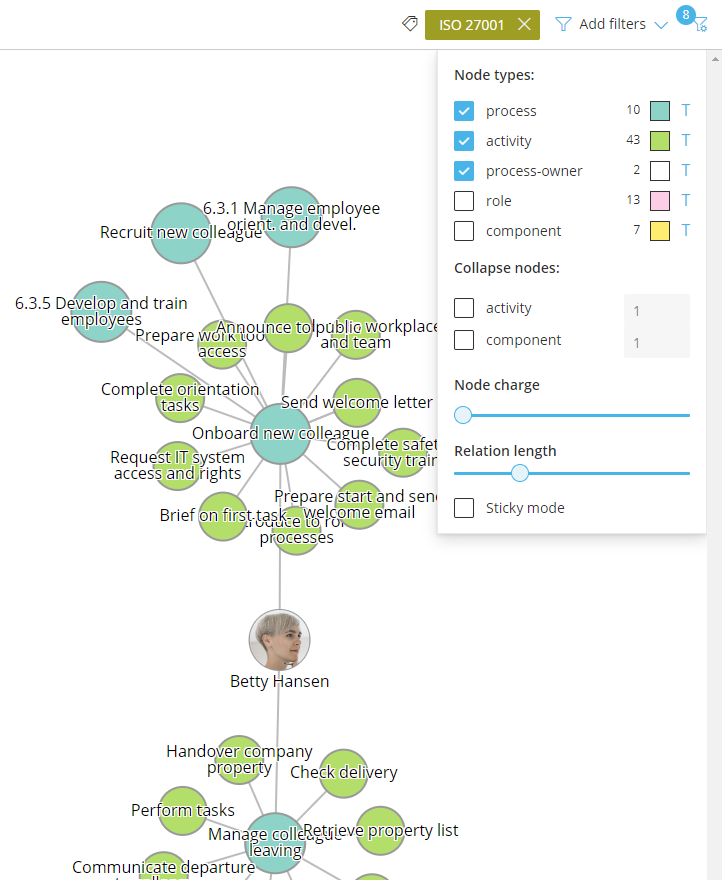
You can also filter by a label to see where it’s used. This helps show, for example, which process owners are responsible for ISO-labelled processes.
Process or activity level view #
Open the Explorer from a process or activity page to pre-select that item as the starting point. This is useful if you are about to edit a work instruction and need to know where the activity is reused.
- Go to the relevant process or activity page.
- Click Explorer in the left menu.
- Review the centered item and its connected processes and activities.
- Click any connected node to explore its links.

TIP! Connected processes appear darker green if they do not originate from the current process. The originating process for an activity is also shown.
Exploring forms #
If you use forms with tasks, the Explorer shows where forms are used and how they connect to activities and processes.

It also helps you find forms that are unused or connected to tasks that have never been submitted.
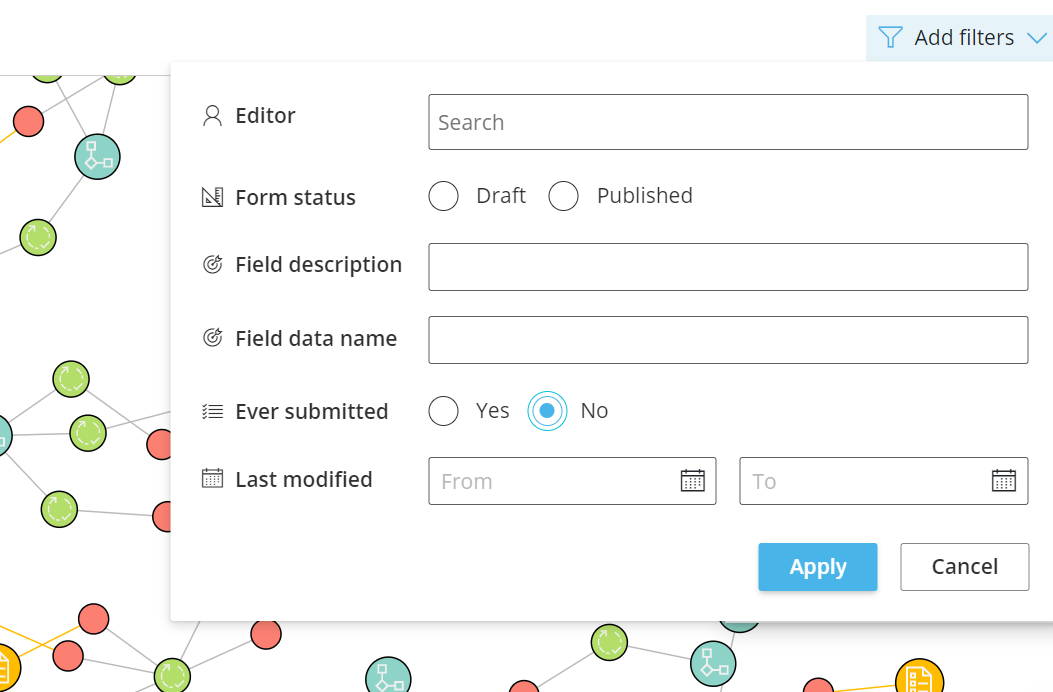
You can filter by form fields or by form editor to focus the view.
Adjust views #
Explorer filters resemble filters elsewhere in Gluu. Use settings to fine-tune the visual layout:
- Node types: Show or hide node types. Click T to toggle node titles.
- Collapse nodes: Group many connections into a single node for clarity.
- Node charge: Increase spacing by pushing nodes apart like magnets.
- Relation length: Set the maximum line length between nodes.
- Sticky mode: Freeze the layout and manually reposition nodes for screenshots.

The Gluu Explorer can combine multiple filters and settings to deliver the exact overview you need — just get started.
Video with examples #
If you want to see examples of how to use the Explorer in real-life scenarios, take a look at this webinar:


