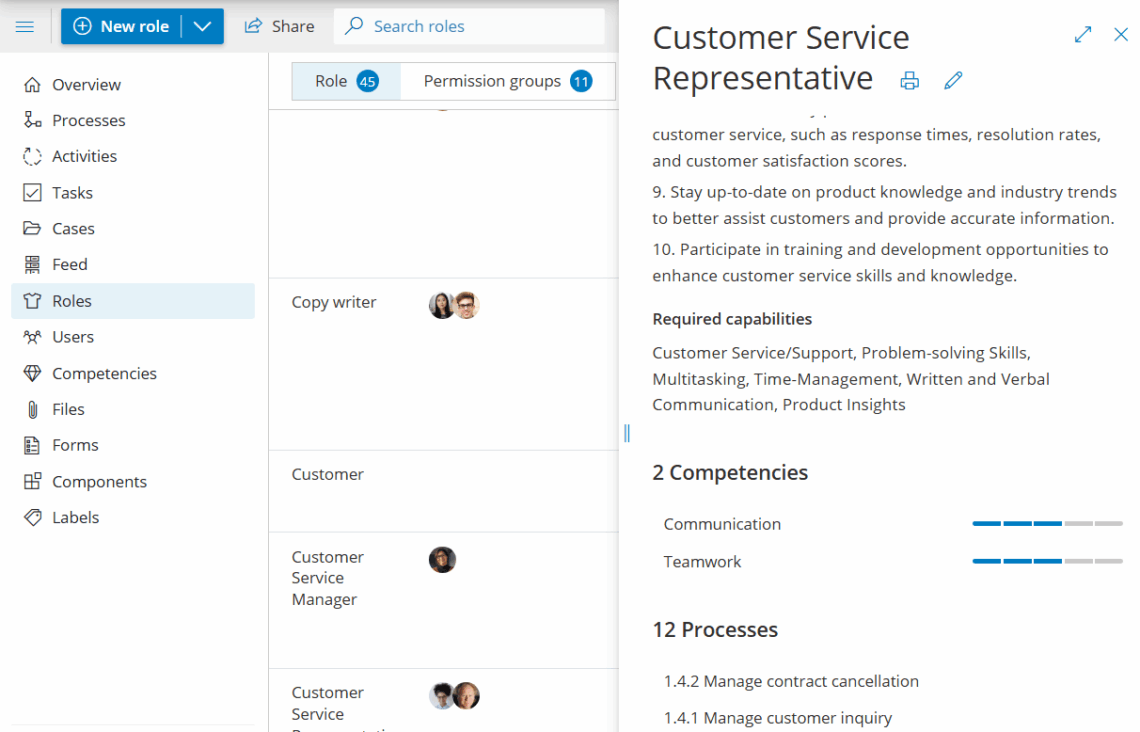
Goal: Define reusable roles, assign them to users and processes, and keep responsibilities clear across your organization.
New to process roles? Then we recommend taking the free Gluu Academy video lesson “Using organisational roles in process design.”
You need to be part of permission groups that give you rights to manage the account, or roles, in order to create and edit process roles. Process roles can then be added via 1) the process creation wizard, 2) the ‘New’ button in the top menu, 3) via the ‘Roles’ menu in the left hand navigation and 4) via automated Azure AD creation.
What is a process role? #
Roles are “hats” defined by skills and responsibilities, not job titles. A single person can hold multiple roles (e.g., “Account Manager” and “Customer Success Manager”).
Roles are defined by…
Name
Required competencies
Purpose
Responsibilities
Required capabilities
The processes that involve the role.
The better you are at describing and managing consistent roles, the easier process mapping will be since you will not need to describe every little detail, if the role assumes a trained and competent operator.
Create new role #
Admins can create roles when building or revising processes.
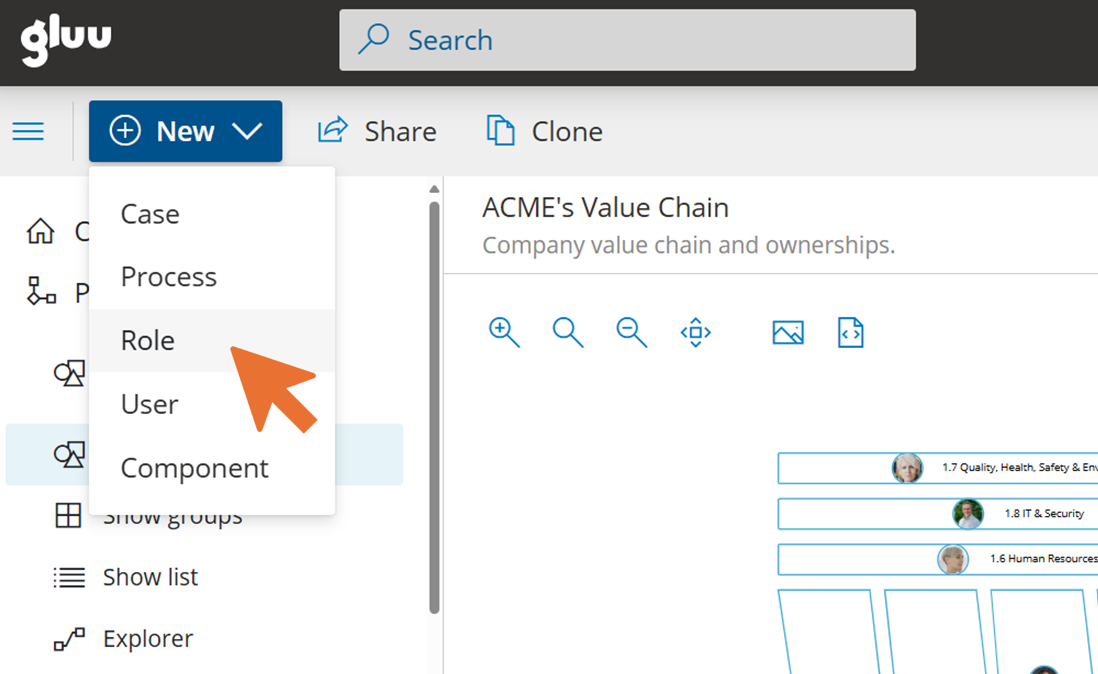
Click New in the top menu and select Role, or go to the menu (if you are have rights to manage roles):
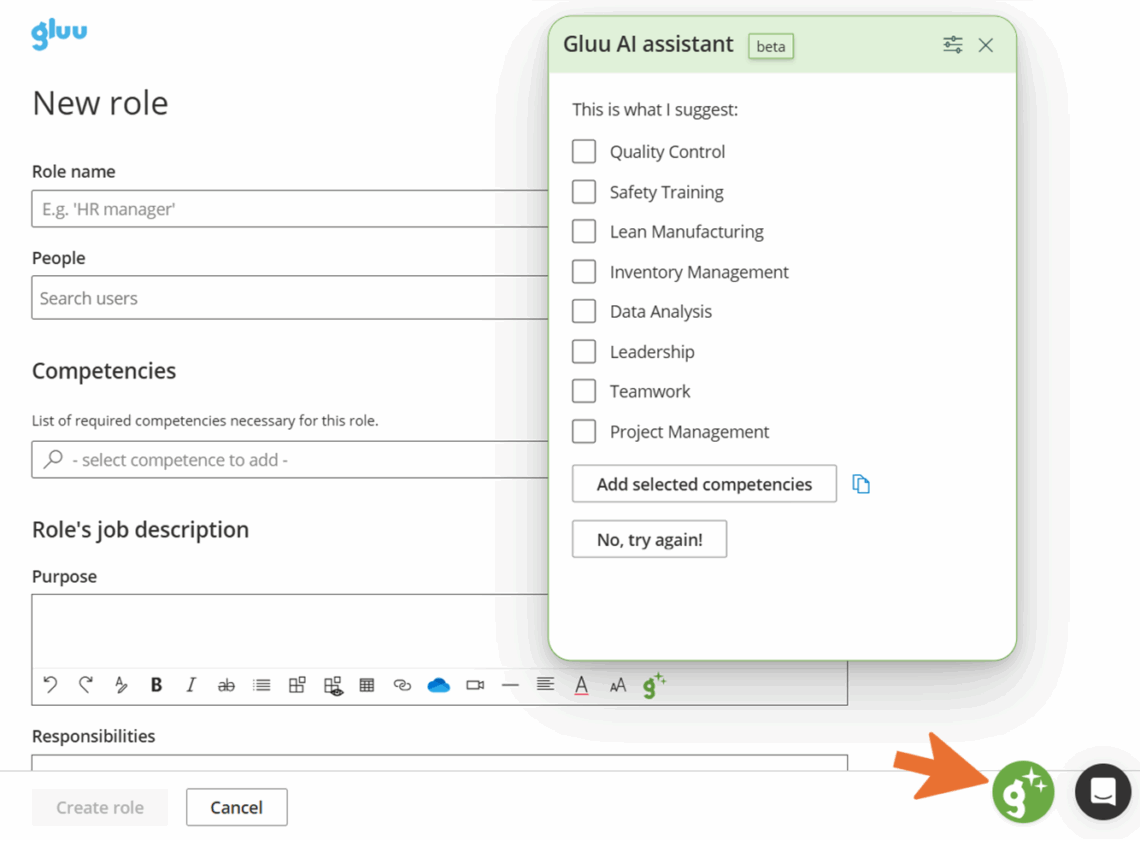
Name the role and add a clear description.
Pair the role with specific users and/or competencies (AI Assistant can help).
Save to add it to the common role library.
Use the Roles page to review connections between roles, competencies, processes, and people. Export data for analysis or other apps: