Goal: Use Gluu’s Localize add-on to translate processes and work instructions so local users see content in their language while you keep a single master.
This add-on lets you – or AI – translate processes and work instructions used across offices and sites without changing ownership or your master language. This way on
- Translate selected processes and work instructions for specific languages.
- Show translations only when a user selects that language and content is translated.
- Maintain a single master language with 1-to-1 local translations.
- Track when master content has changed and the translation needs updating.
Enable the add-on #
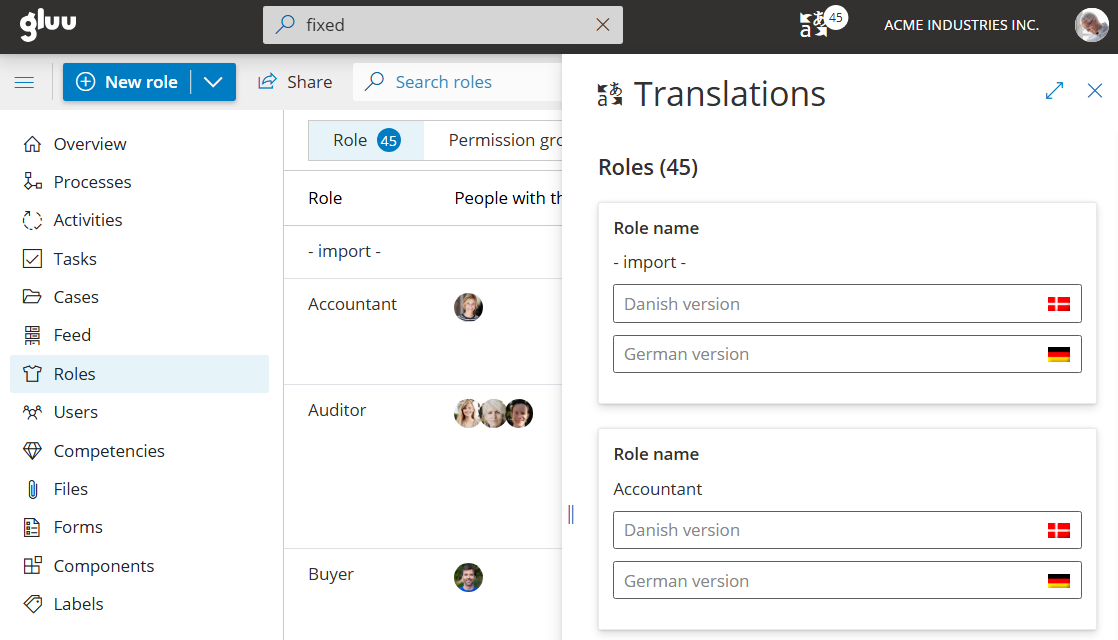
Contact Gluu support to enable translations for your account. When enabled, you will see the translation tool:

Prepare content #
- Prepare your process maps. Make activity shapes large enough for longer languages (e.g., German texts can be ~2× longer than English).
- Ensure the right access. Translators must have rights to view the process and to perform translations.
Translate a process #
Follow these steps for any process:
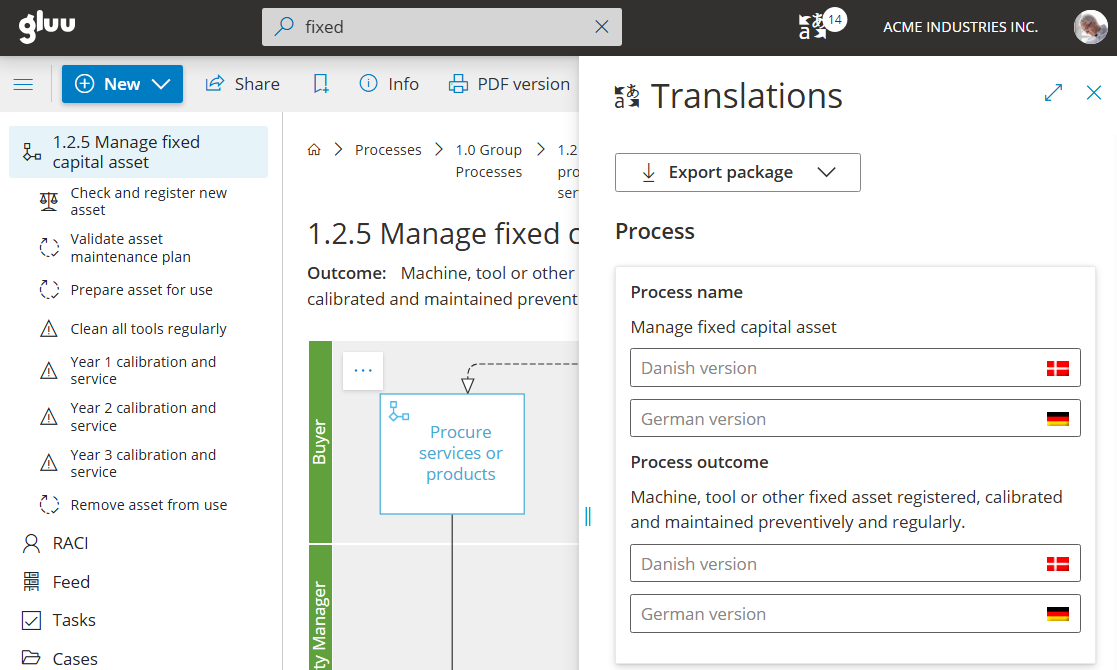
- Open the process you want to translate.
- Enter translated text below each master field (changes save automatically).
- Once all items are translated then the process will automatically show to users with the selected interface language.
Confirm that users who select this language now see the translated process. Proceed with other translations.
Translate a work instruction #
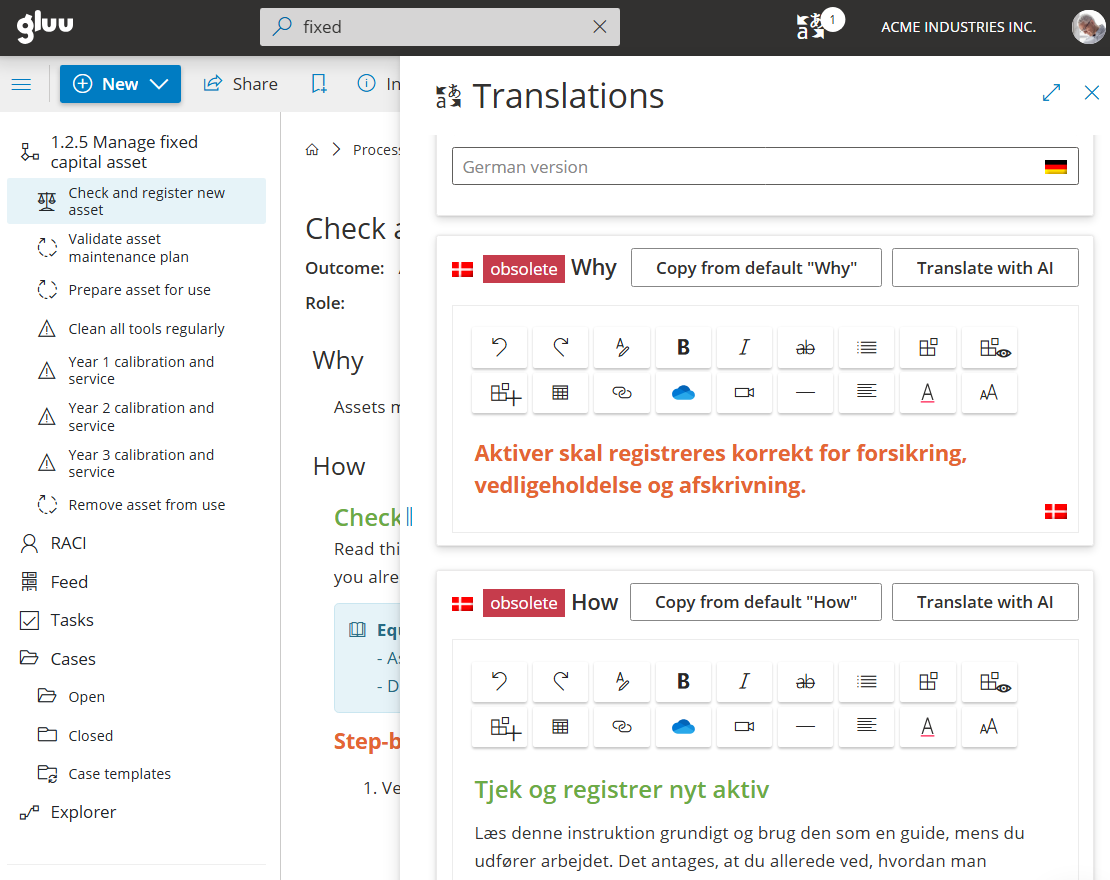
Open the work instruction you want to translate and repeat the steps above.
“Obsolete” means that the original text has changed and must be updated.
“Translate with AI” lets you translate automatically while preserving formatting.
Translate other items #
Open the relevant page (e.g., process hierarchy or roles) and repeat the same steps.