Goal: Learn how using components in Gluu standardizes links, texts and embeds across work instructions so you update once and reuse everywhere.
Components are reusable building blocks that can be used inside work instructions.
Why use them? #
Components speed up work and keep content consistent. Update a component once and every work instruction that includes it updates automatically.
Think of components as a toolbox: standardize legal text, links, vocabulary and system descriptions across instructions to save time and avoid errors.
All Gluu objects (processes, activities, tasks, forms, etc.) are auto-converted to components when created. You can also create your own.
All users can see components in work instructions. Only users with the component editor role can create/update components.
Video intro #
If you prefer a video, watch the quick guide below.
Create component types #
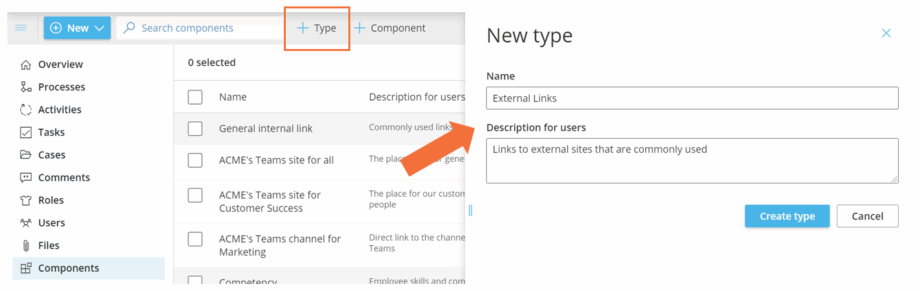
Use types to categorize components (e.g., General internal links, Competency, Vocabulary, Business application, Legal texts, Reference documents, External links, SharePoint sites).
To create a new component type:
- Open Components and turn on Edit mode.
- Click Add Type.
- Enter Name and Description.
- Click Create type.
Create a new component #
There are three component types you can create:
- Link component — share internal/external links (optionally show link text instead of the URL).
- Text component — reuse standard texts (e.g., company or system names).
- HTML component — combine videos, links, text and images. You can also convert an entire work instruction (or part of it) into an HTML component.
To create a text, link or HTML component:
- Open Components and turn on Edit mode.
- Click Add Component.
- Choose the Component type.
- Name the component.
- Add a short description.
- Choose which Category it should show for (specific or any).
- Set link behavior (show as link text or full link).
- Choose the layout.
- Apply styling.
- Click Create Component.

TIP! In an HTML component, quickly link to other components with AltGr + 2 to use components as building blocks.
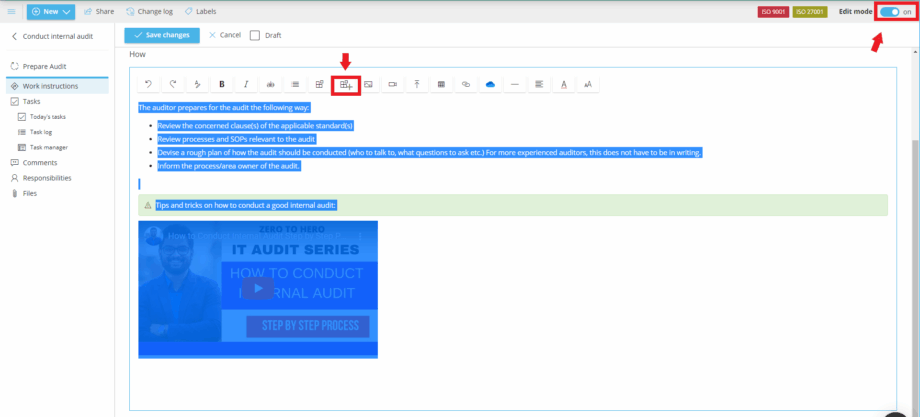
You can also create a component directly from a work instruction
- Open the work instruction and turn on Edit mode.
- Select the part to include (text, videos, files and images are supported).
- Click the Create component icon above the instruction.
- Edit details in the pop-up and save.
Sort the component overview #
Sort A–Z or Z–A by clicking the Name column.

You can also filter the list (see advanced filtering guides for components on the components overview page).
TIP! The Explorer is great for a visual overview of how components connect to activities and processes.
Add to work instructions #
To insert a component into a work instruction:
- Open the activity and turn on Edit mode.
- Place your cursor where the component should go.
- Click the Component icon in the editor (or press AltGr + 2).
- Browse by type or search by name.
- Click the component to insert it.

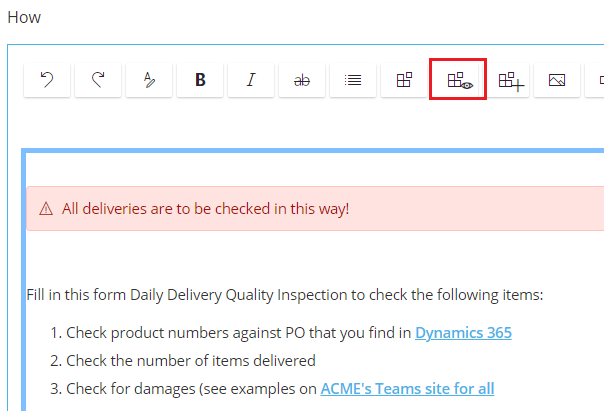
Inserted HTML components show as named boxes in edit mode. Click the component icon with the “eye” to toggle between box view and content view.
Block view #

Content view #