
Goal: Quickly create, update, or select many users by pasting data from Excel/CSV—no file upload needed.
Gluu lets you import large amounts of users in different ways. These can then be synced via Azure AD.
Before you start #
- Plan: Bulk import from the clipboard is available on any plan.
- Role: You need the Manage users permission to import, update, or bulk-select users.
- Setup: Have your user table copied to the clipboard from Excel or CSV, and allow clipboard access when your browser prompts for it.
Go to Users → find the Bulk option.
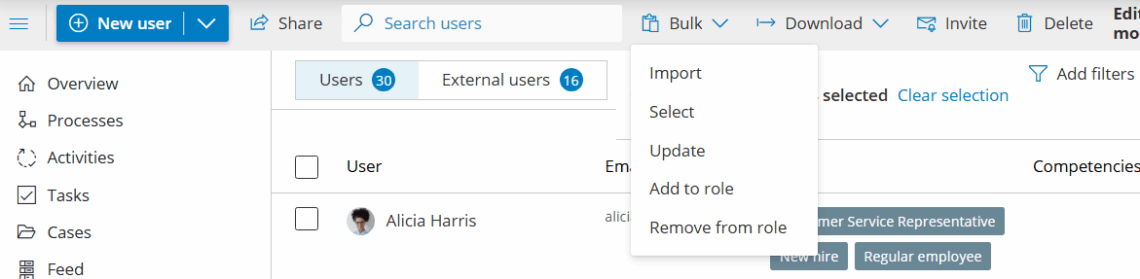
There are two clipboard-based options in the Bulk menu:
- Import — this lets you paste a table to create new users or update existing ones.
- Select — this lets you paste a list of emails to select matching users for bulk actions.
Option 1 — Import or update users from clipboard #
Copy rows from Excel/CSV (e.g., Name, Email, Role…). Then use Bulk > Import to map columns and run updates/creation.
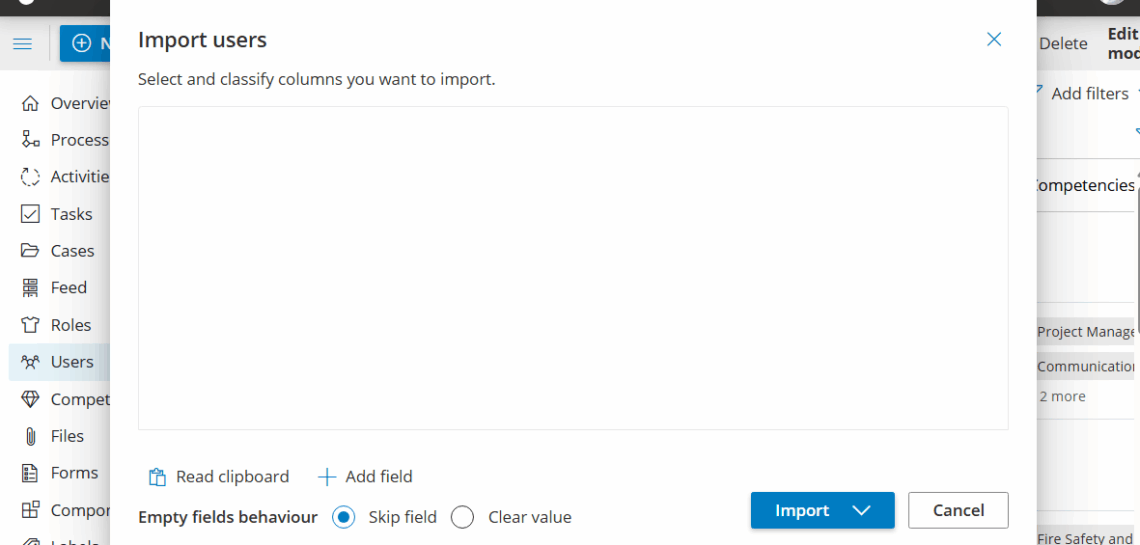
Step 1 — Copy your table #
Select cells in Excel/CSV and copy (Ctrl/Cmd + C).

Step 2 — Import from clipboard #
In Users > Bulk, click Import, then Read clipboard (click again if the dialog is already open).
Step 3 — Map columns #
Confirm each column’s type (e.g., Email, Name, Role). Email is required for every row to import/update.

Step 4 — Test run (recommended) #
Use Test run to preview exactly what will be created vs. updated—no changes are made during a test run.
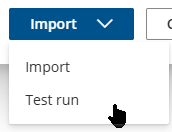
Step 5 — Import #
Click Import to commit the changes.
How it looks in action:
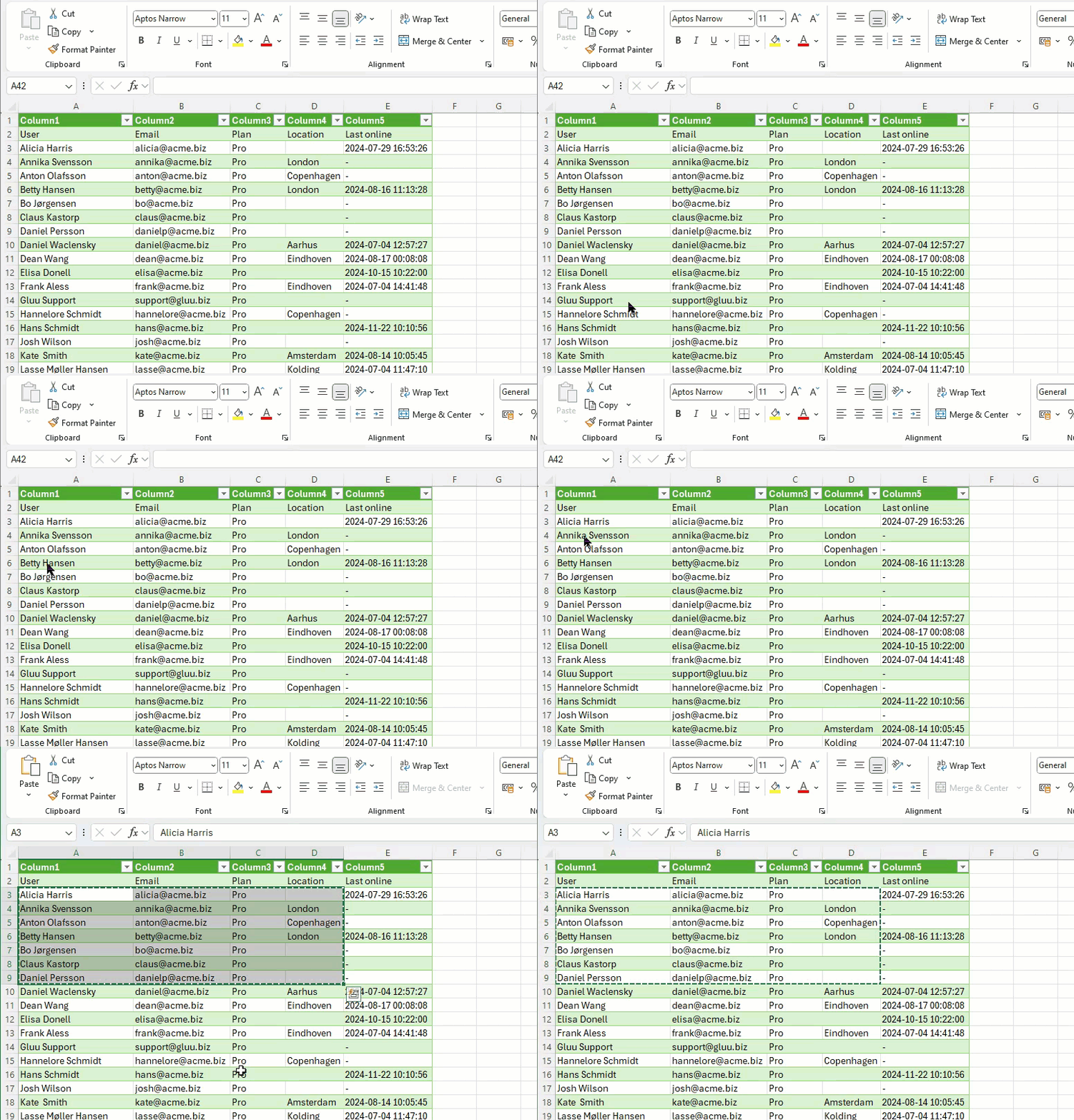
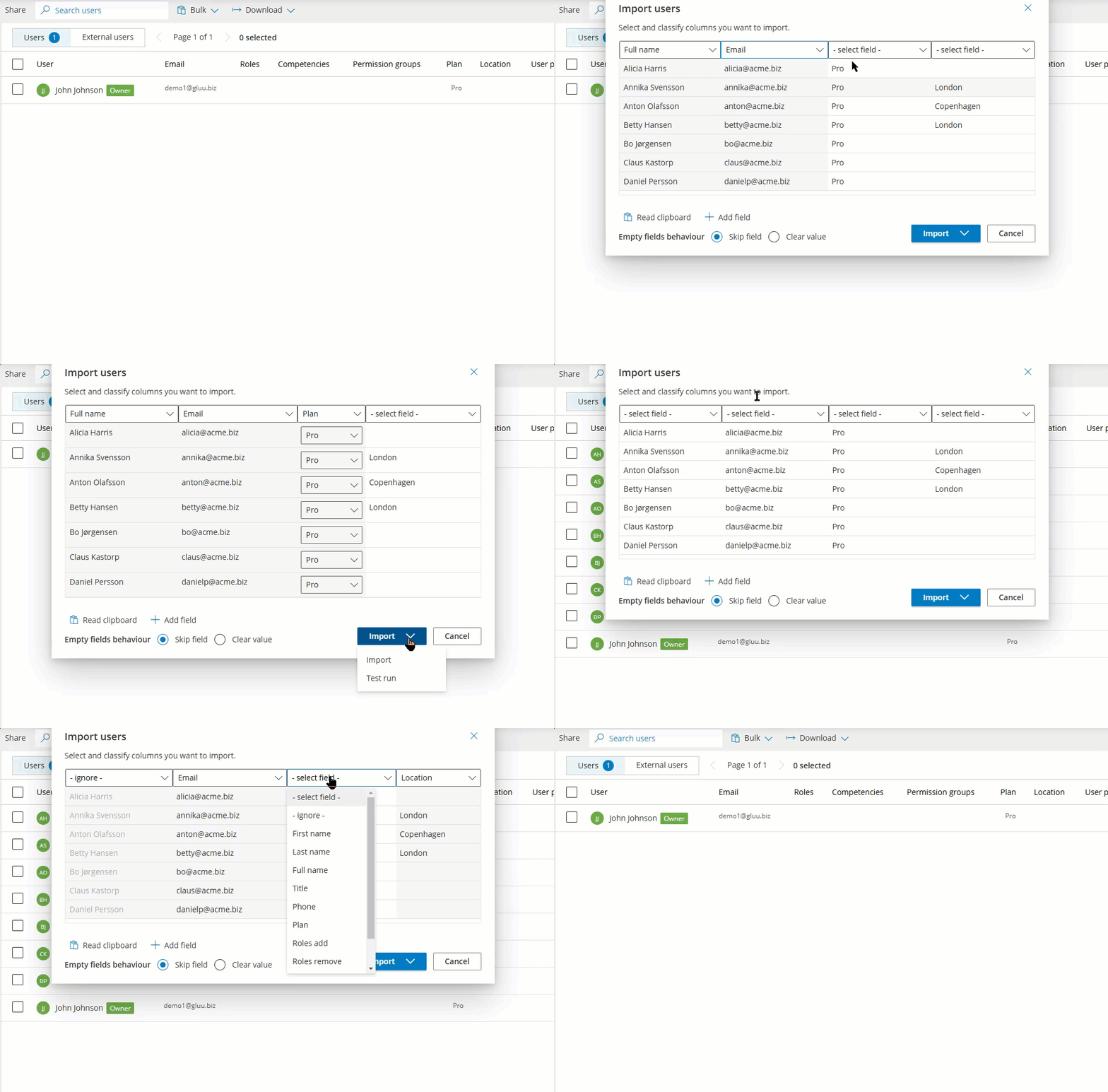
You’re done once you’ve clicked Import and the users are created or updated.
Option 2 — Select users from a list of emails #
Paste a simple list of emails from your clipboard to quickly select matching users (e.g., to bulk update roles/licensing, or delete).
1) In Users > Bulk, choose Select.
2) Paste your email list (from CSV/Excel/plain text).
3) Confirm the selection; proceed with your bulk action.
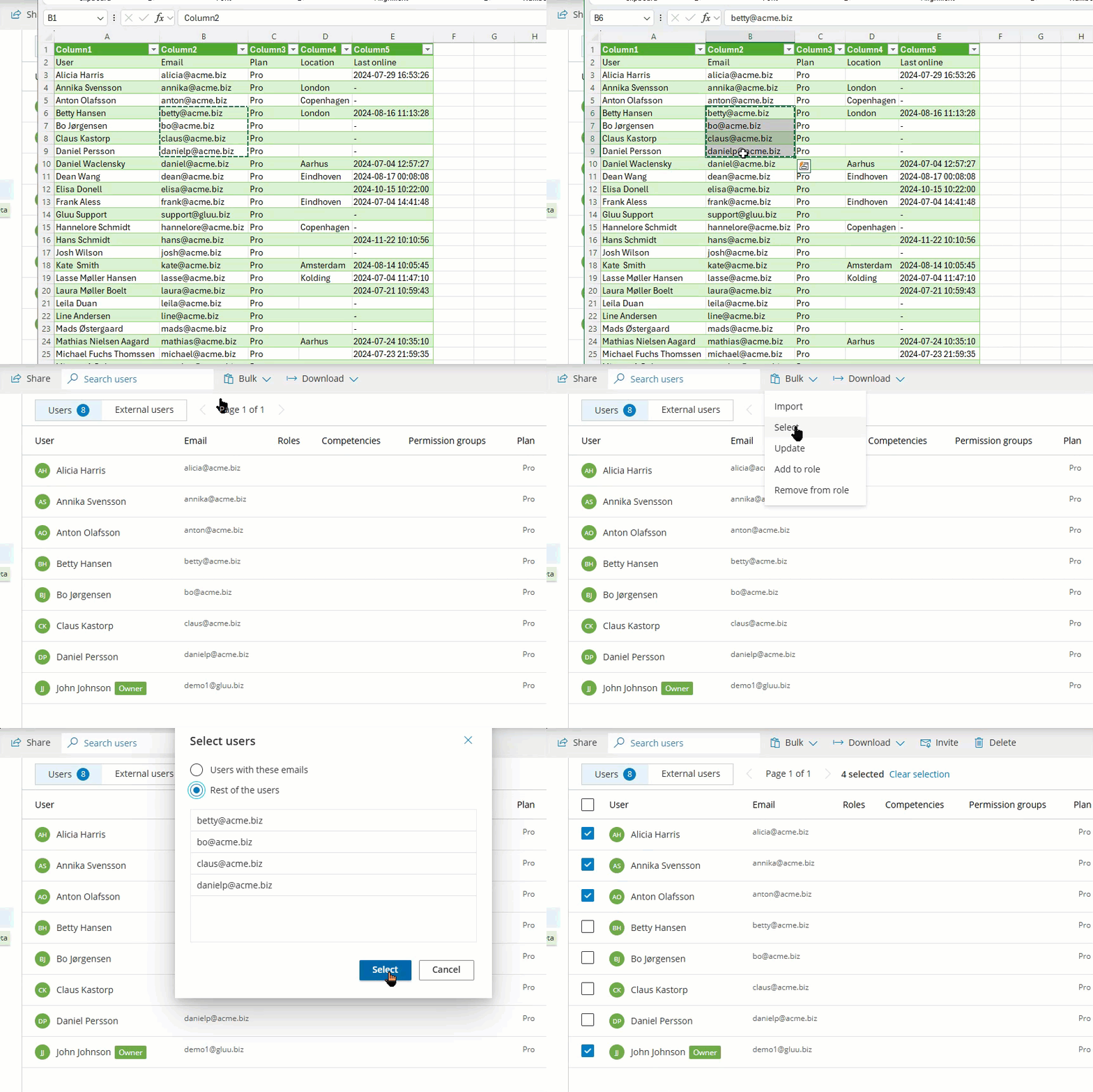
You’re done once the matching users are selected and ready for your bulk action.
Tips #
- Clipboard access: Your browser will prompt the first time you use Read clipboard.
- Minimum required field: Email must be present and correctly mapped to import/update.
- Clean headers: Include a header row (e.g., Email, First name, Last name, Role) to speed up mapping.
- Test run first: Catch missing emails, duplicates, and unexpected changes before importing.
- Mixed datasets: You can create new and update existing users in one go—the import handles both by email.
Troubleshooting #
- Nothing appears after “Read clipboard”: Ensure you copied a table (or CSV text) and granted clipboard permissions.
- Wrong columns detected: Map each column manually in the dialog; confirm Email is mapped.
- Some rows fail: Use Test run to see exactly which rows and why (e.g., invalid email format).
- Emails not found (Select mode): Check for extra spaces/line breaks; trim and retry.
FAQ – Import users #
Bulk import from the clipboard is available on any plan. You need the Manage users permission to import, update, or bulk-select users.
Import lets you paste a full table to create new users or update existing ones. Select lets you paste a plain list of emails to quickly select matching users for a bulk action, like updating roles or deleting accounts.
Email must be present and correctly mapped for every row. Gluu uses email to match rows to existing users for updates and to identify new users to create.
Yes. Test run previews exactly what will be created versus updated without making any changes—it's the best way to catch missing emails, duplicates, or unexpected changes before committing the import.
Make sure you copied a table or CSV text before clicking, and that you granted clipboard permissions when your browser prompted for them. If columns are mapped incorrectly, map them manually and confirm Email is mapped.


