
Goal: Safely remove users and hand over any process ownership/editorship—without losing history or access.
Before starting you must have rights to manage the processes you’re transferring; otherwise the transfer will be denied. Using Microsoft login? Remember to Remove the user from the AD group as well.
Delete users #
Deleted users cannot log in and will no longer appear in pickers/lists. Their historical comments, edits, and attributions remain—these are part of your organization’s knowledge record. Personal information is removed from the profile for GDRP compliance reasons.
Delete regular user(s) #
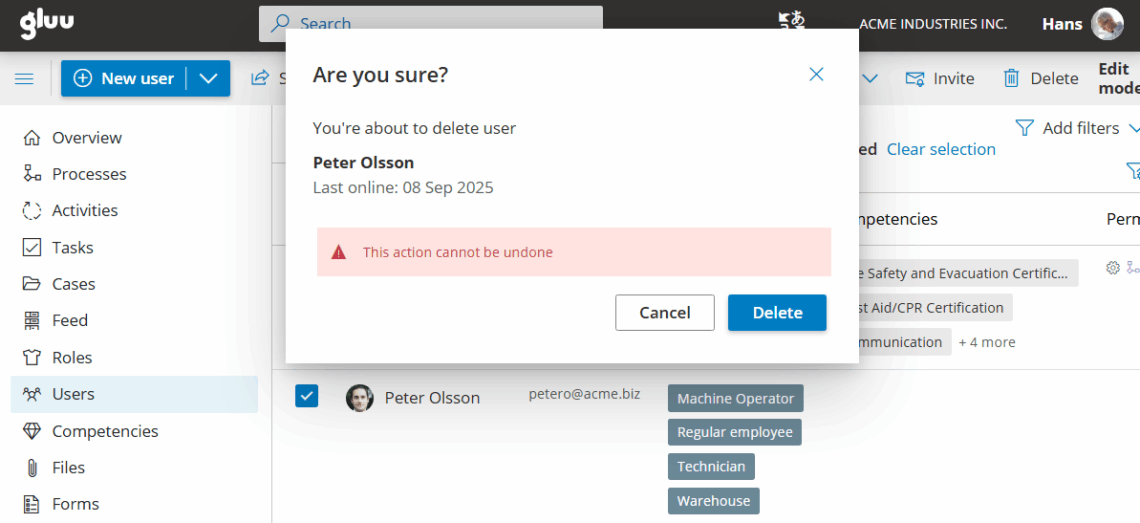
1) Go to Users (left menu) → search for the user. 2) Turn on Edit mode. 3) Click Delete (trash icon):

Result: The user is deleted; their name still shows on historical comments/edits but their personal data is removed.
Delete owner or editor #
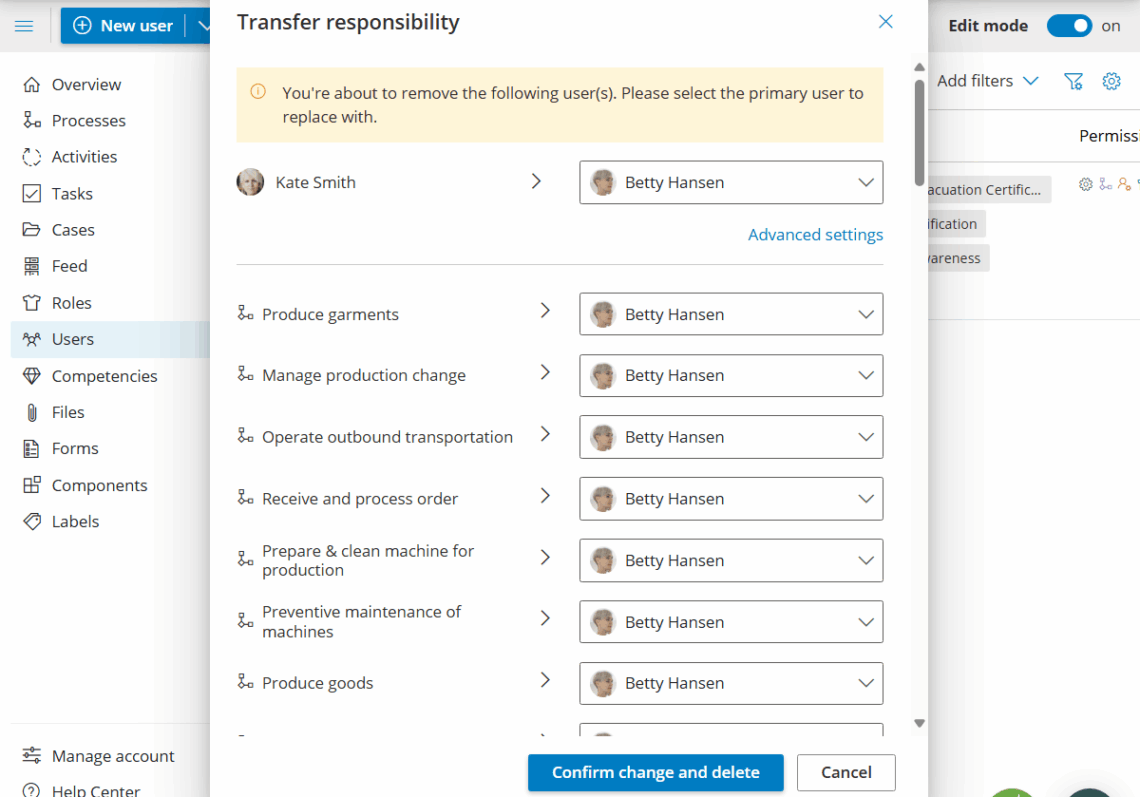
When you delete a user who owns/edits processes, you’ll be prompted to transfer ownership first.
Step 1 — Start deletion #
Click the trash icon for the user. A transfer dialog opens.
Step 2 — Choose primary transferee #
Select the primary user who should receive ownership/editorship by default, then proceed.
Step 3 — (Optional) Advanced settings #
Open Advanced settings to see all processes owned/edited by the user. You can override the primary transferee per process if needed.
Bulk delete users #
Steps
1) In Users, turn on Edit mode and select the users you want to remove.
2) Ensure the selection covers all pages (use the page selector to confirm).
3) Click Delete. If any selected user owns processes, you’ll be prompted to transfer ownership first. After transfers, deletion completes.
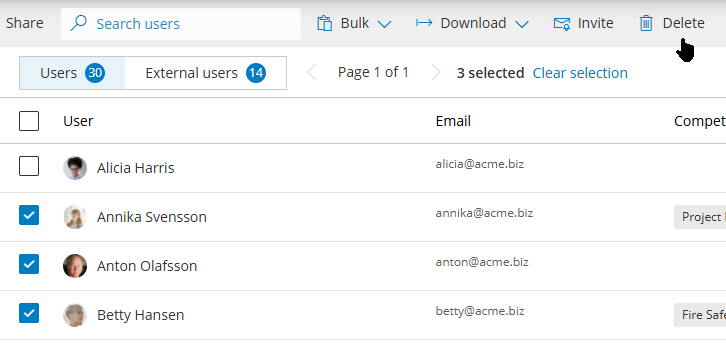
Selection across pages: Verify all target users are selected (not just the first page):

Edit users in bulk #
Use bulk update to change multiple users in one operation. Bulk editing lets you add, change or remove:
Plans
User profiles
Roles add/remove
Supervisors / Managers
Access
Custom fields
To edit you do this:
1) In Users, turn on Edit mode and select the users.
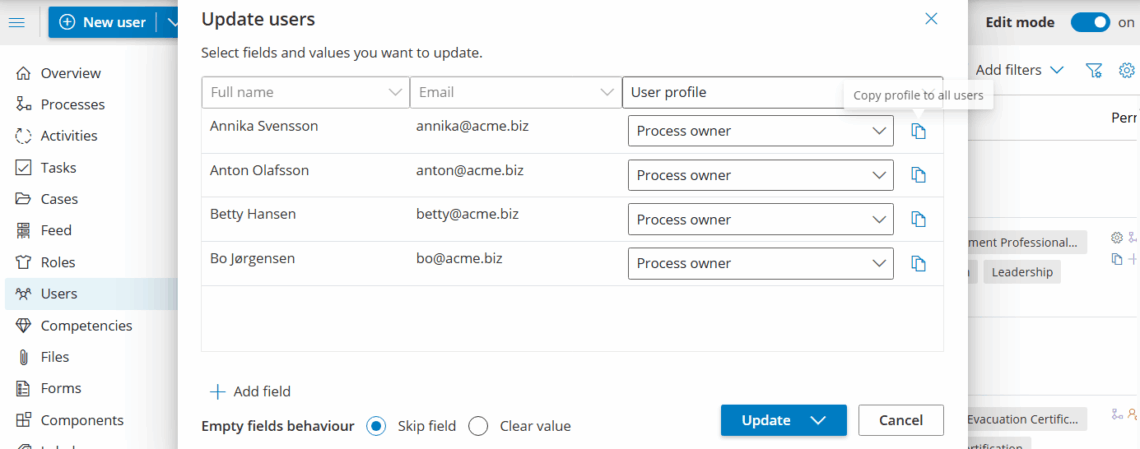
2) Click Bulk > Update and add the columns you wish to change.
3) Set values and apply the update.
Then add the fields you want to modify and set values:
If any selected users are process owners, you’ll be guided through transferring ownership before deletion completes, as explained under deleting users.


