
Goal: Define who can manage a case and who must complete which tasks—by role or by named users.
A case team is the group responsible for executing a case. Set it on the case template level (default for new cases) or adjust on a running case.
Set up a case team #
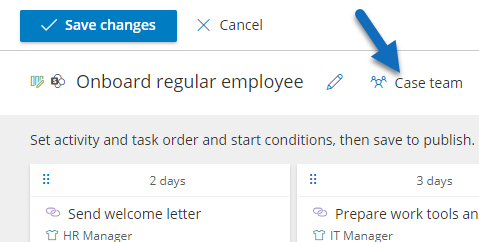
Where to configure on a case template or when starting a case if the template allows it:
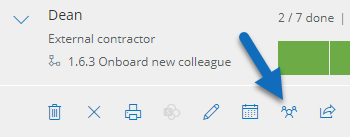
…or on an active case:
Assign managers #
Open the case team configuration drawer to set:
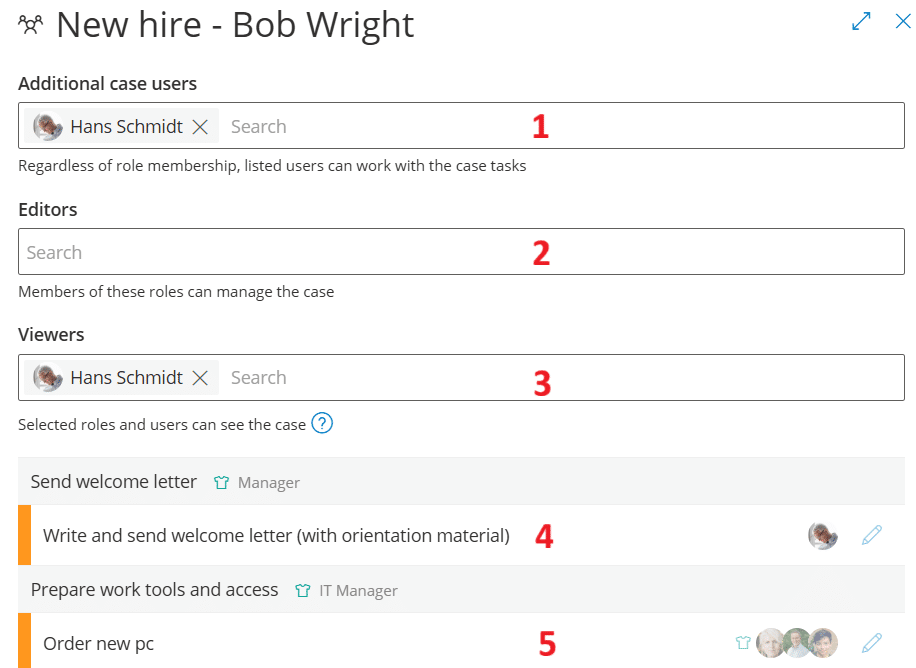
- Additional users: Individuals who can work on tasks regardless of role membership in the process (the case creator is added by default).
- Editors: Only users in the chosen role can edit/manage the case. (Process owners/editors lose edit access.) Use for sensitive cases.
- Viewers: Named users and/or user with selected role are allowed to see the case regardless of visibility type chosen and process and/or case team membership. For HR cases, the users can view case progress, not case content.
- Role assigned: Tasks are assigned to a role (role icon shown). Any user in that role can complete them.
- User(s) assigned: Personal assignment to specific users (limits visibility and responsibility to named people). To edit 4 and 5 click the pencil icon on the far right.
Assign across many activities or tasks #
To repeat an assignment quickly, change the selection of users and click Copy to all tasks:
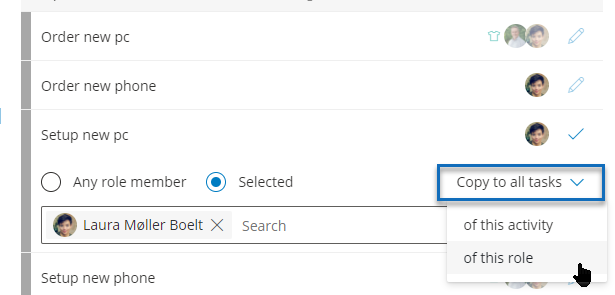
- of this activity – Apply to all tasks in the current activity.
- of this role – Apply across all activities that use the same role in the entire case.
Tip: Use “of this role” first, then fine-tune a few exceptions.
Bulk update users (alternative to copy) #
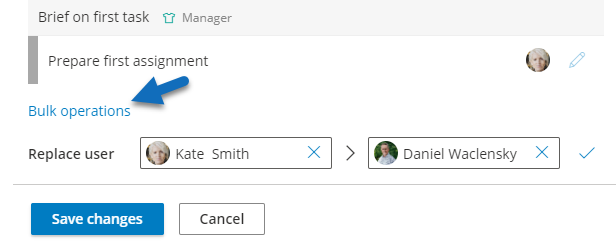
Use bulk update to replace one user with another across the whole case (all activities/tasks), without changing your role-based structure.
Cases with template users #
Cases with template users run a little differently and allows you to remove as much complexity for end users starting cases as possible.
When adding template users to a case template, the user starting the case will not be asked to edit the Case team. Instead he/she is only asked to pick a user for each template user. Based on the selection, the tasks assigned to the template user will automatically be assigned to the selected user(s). This is a much more user-friendly way of starting cases for frontline employees that to not spend most their time in front of a screen.
Below is an example of a case with HR visibility. Step 1 and 2 in the wizard remain the same for the user starting the case, but the Assignee step does not show the case team, only the template users.
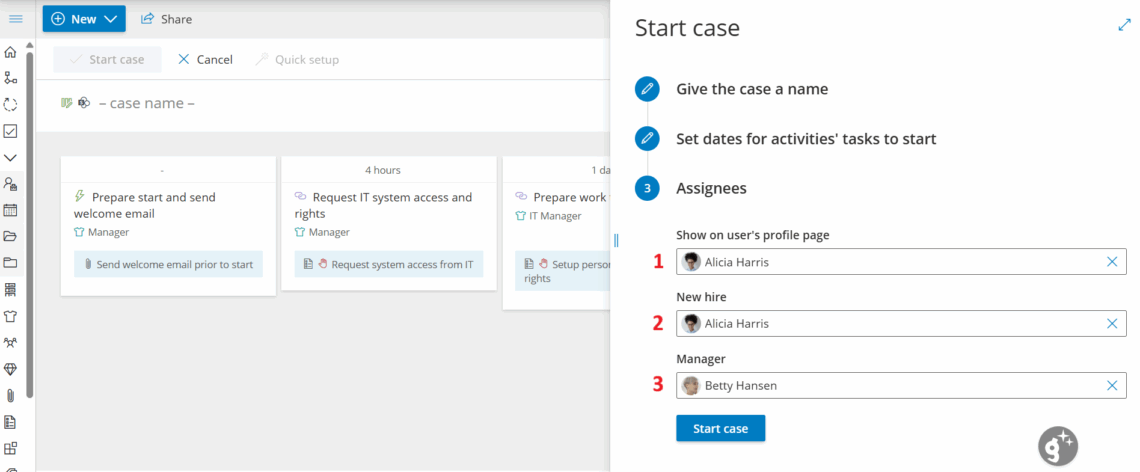
- This selection decides which user the case is connected to and the case content is then shared with the user’s manager (assigned in settings on the user page) and the case shows on the user profile page.
- This is Template user 1 and the selection decides which user all the related tasks are automatically assigned to based on the case template.
- This is Template user 2 and the selection decides which user all the related tasks are automatically assigned to based on the case template.
For both template users the text shown to the user starting the case (“New hire” and “Manager”) is decided in the case template (the template user hints).
Note: Only tasks assigned to template users are automatically assigned. Other tasks will show to everyone with the role or the specific user assigned in the template, following the normal logic of task assignment. Also, assigned template users cannot be changed after the case has started, but assignment can be changed in the case team.
Enforce a naming standard #
Goal: Ensure consistent case names—and optionally map cases to matching SharePoint folders.
Set a naming standard if your company uses specific formats (e.g., PROJECTNUMBER-PROJECTNAME, like 12345-Tile roofing). If nothing is set, users can name cases freely.
Set up #
- Open the case template you want to control.
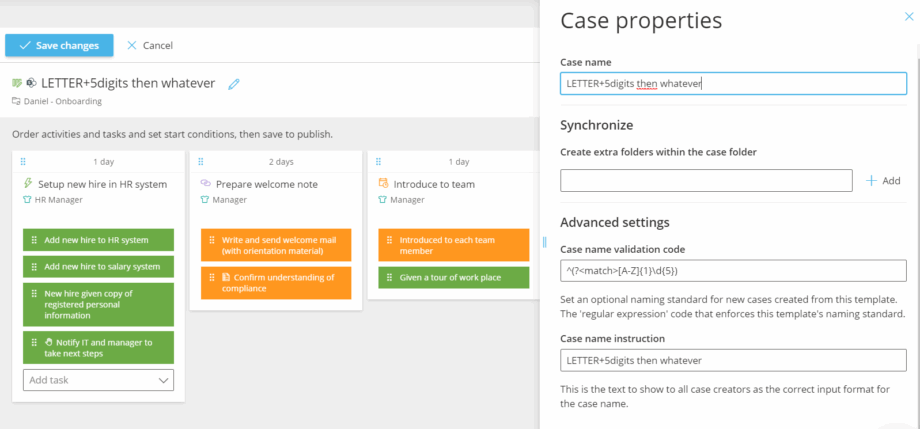
- Enter a Case name validation code (Regex) and write a clear Case name instruction for users.
Case name validation code: the Regex that validates the case name (and optionally supports SharePoint mapping).Case name instruction: the help text that shows the correct format.
Regex examples #
^[A-Z]{1}\d{5} → Start with a capital letter A–Z followed by exactly five digits.
[a-zA-Z]{2,3}\d{3,}$ → End with 2–3 letters followed by 3+ digits.
Need help with Regex? Try this cheatsheet or online tester. Or send your preferred standard to our support team—happy to help.
Map to a SharePoint folder (optional) #
Use a named capturing group called match to extract the part of the case name used to filter remote folders. Example:
^(?<match>[A-Z]{1}\d{5}) – same rule as above, but the extracted portion (the “match” group) is used to locate the corresponding SharePoint folder. If a match exists, Gluu exports to that folder; otherwise, it behaves as usual.
Template vs. case level #
- You can set Regex on the template and/or on a specific case. When a case starts, the template’s Regex copies to the case but can be changed later for that case.
- Regex is stored with the case, so updating the template won’t affect running or completed cases.


