
Goal: Use business architecture drawings in Gluu (“Drawings”) to build an interactive visual guide that helps users navigate your process hierarchy.
If you prefer giving your users a visual guide to help them navigate your process hierarchy instead of only showing the standard overview (categories, groups and processes), use Drawings. It creates an interactive diagram based on your process structure — ideal for complex or extensive hierarchies.
You can include your entire process hierarchy in one drawing, or create multiple drawings that show individual parts.
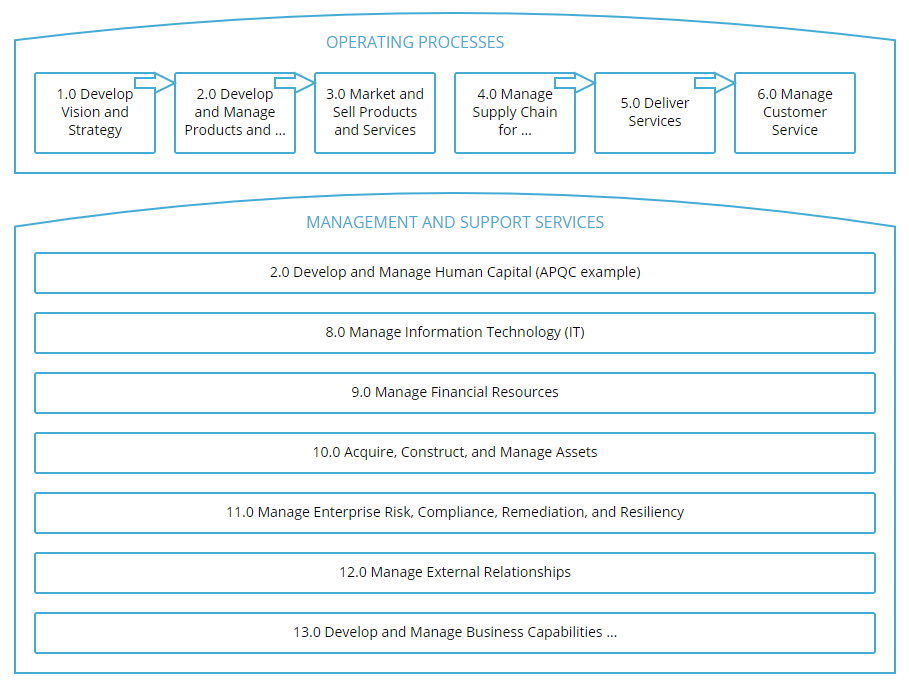
How to draw #
The video introduces business architecture drawings and ends with a quick guide on how to draw:
Make custom navigation #
Link to processes or activities #
Enrich shapes with links to categories, groups and processes in your hierarchy — or link to external sites or plain text. This creates a visual, interactive guide for users.
- Open Drawings from your Gluu account.
- Create or select a shape that represents a category, group or process.
- Add a link to the relevant category, group or process.
- Optionally add a text note or an external URL.
- Publish the drawing when ready.
When you link a Gluu object (category, group or process), a small icon appears on the process overview page. Users can click the icon to open your drawing.
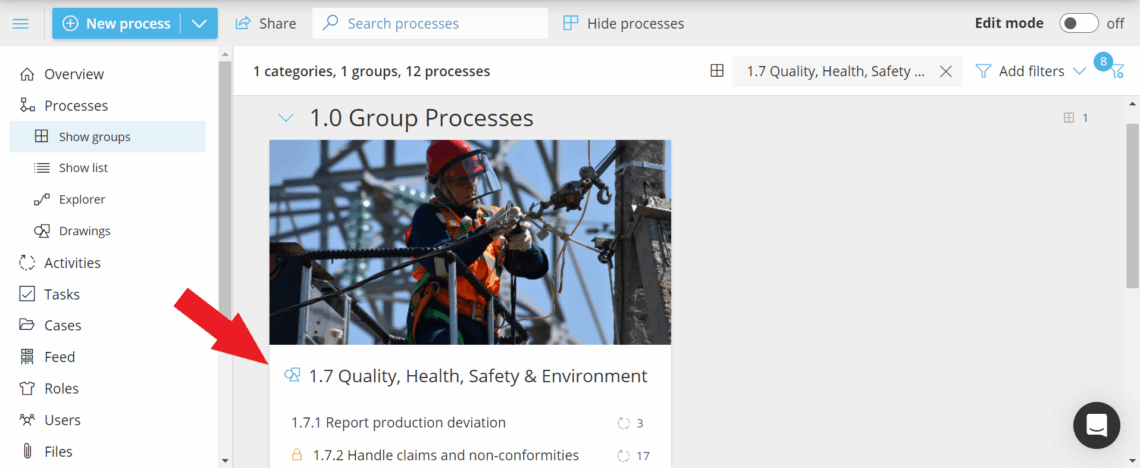
If users start on the drawing and click a category or group, they see a filtered view on the process overview page that matches the clicked item.
Example: Clicking the drawing link for “1.7 Quality, Health, Safety & Environment” opens the process overview page filtered to that group.
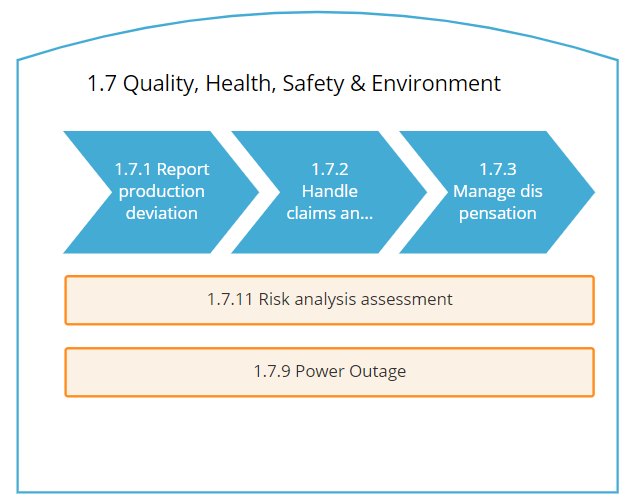
This gives users a focused view of the hierarchy that helps them find what they need faster.
Link to other drawings and external sites #
Connect drawings together to guide users from a full hierarchy view into detailed sub-drawings. You can also link to external sites such as your intranet or supplier pages.
- Open a drawing and select a shape.
- Add a link to another drawing to create a drill-down path.
- Add an external URL if you need off-site resources.
- Publish and test the links end-to-end.
Show responsible users on drawings #
Add users to drawings to visualize who is responsible for parts of your hierarchy.
- Open the relevant drawing.
- Select the shape that represents the area of responsibility.
- Add the user to the shape.
- Publish to show responsibility in the interactive view.
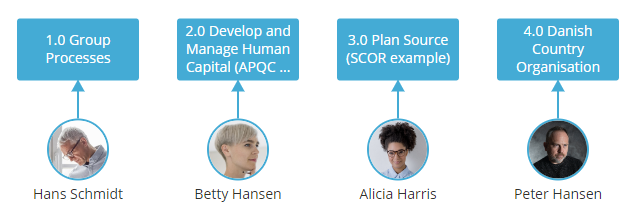
Permissions: The account owner and users with the “manage account” admin setting can create drawings. All users can view published drawings.


