
Goal: Define reusable roles, assign them to users and processes, and keep responsibilities clear across your organization.
New to process roles? Then we recommend taking the free Gluu Academy video lesson “Using organisational roles in process design.”
To create and edit process roles you need the Manage roles permission. Process roles can be added via: 1) the process creation wizard, 2) the New button in the top menu, 3) the Roles menu in the left-hand navigation, or 4) automated Azure AD creation.
Before you start #
- Plan: Process roles are available on any plan. Required competencies on a role require the HR Manager add-on.
- Role: You need the Manage roles permission to create, edit, or retire roles.
- Setup: No special setup—create your first role from the New button, the Roles menu, or the process creation wizard.
What is a process role? #
Roles are “hats” defined by skills and responsibilities, not job titles. A single person can hold multiple roles (e.g., “Account Manager” and “Customer Success Manager”). Think of them like functional roles as opposed to organizational roles.
Roles are defined by:
- Name
- Purpose
- Responsibilities
- Required capabilities
- Required competencies (requires the HR Manager add-on)
- The processes that involve the role
The better you are at describing and managing consistent roles, the easier process mapping will be — if the role assumes a trained and competent operator, you will not need to describe every little detail in work instructions.
Create a new role #
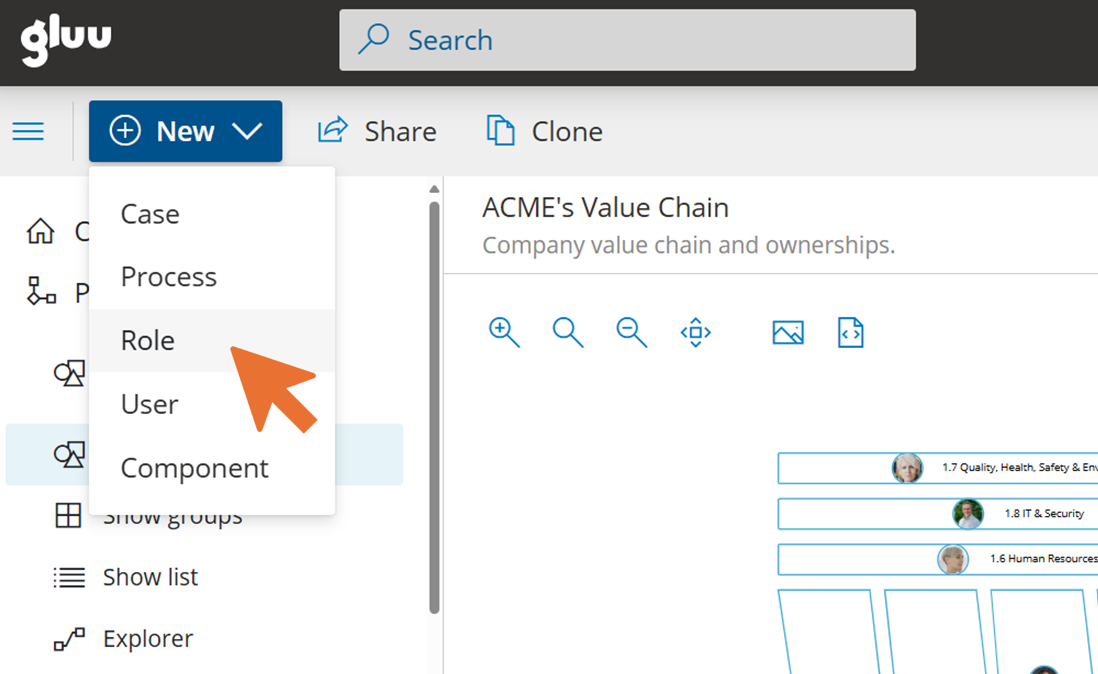
Click New in the top menu and select Role, or go to the Roles menu in the left-hand navigation (if you have rights to manage roles):
- Name the role and add a clear description.
- Pair the role with specific users and/or competencies (the Gluu Assistant can help suggest both). Note: competencies require the HR Manager add-on.
- Save to add it to the common role library.
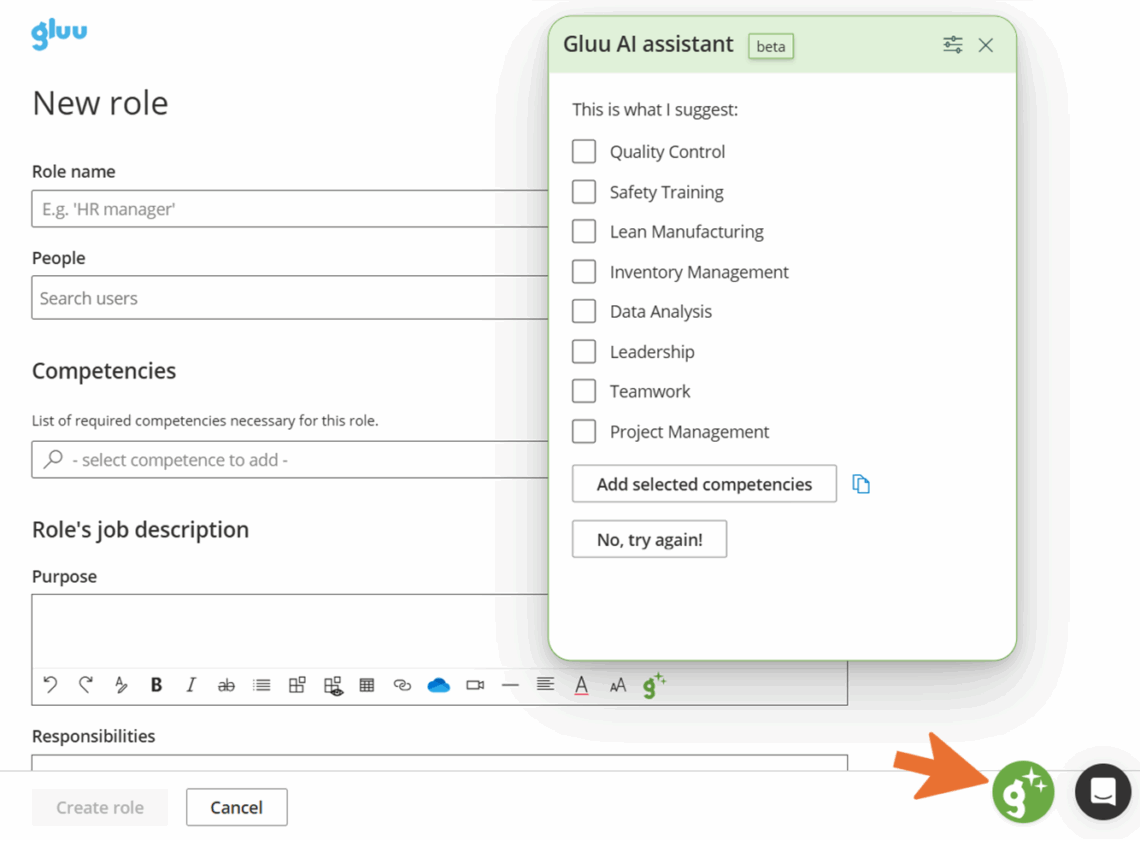
You’re done once the role is saved and appears in the common role library, ready to assign to processes.
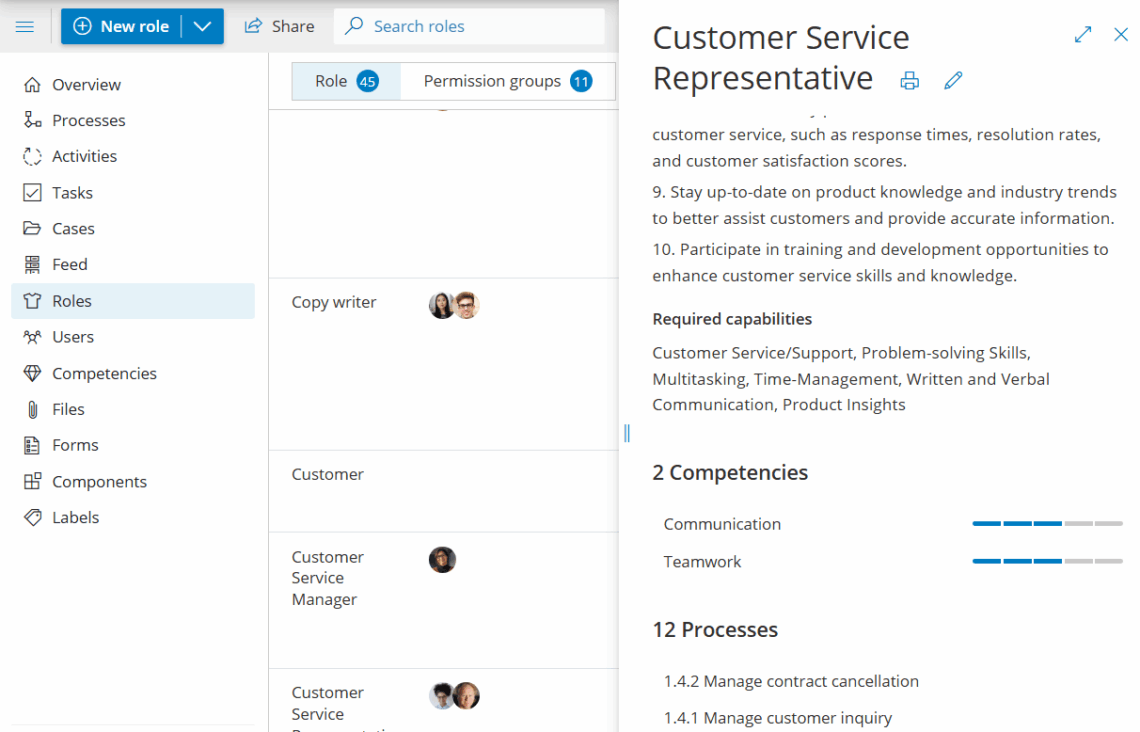
Use the Roles page to review connections between roles, competencies, processes, and people. Export data for analysis or other apps:
Retire a role #
When a role is no longer needed, retire it rather than deleting it. Retiring prevents the role from being used in new processes while leaving it in place for existing processes until you are ready to replace it.
- Go to the Roles page and open the role you want to retire.
- Click the Retire option (shown in the role settings).
- Confirm. The role is marked as retired and will no longer appear in role pickers for new processes.
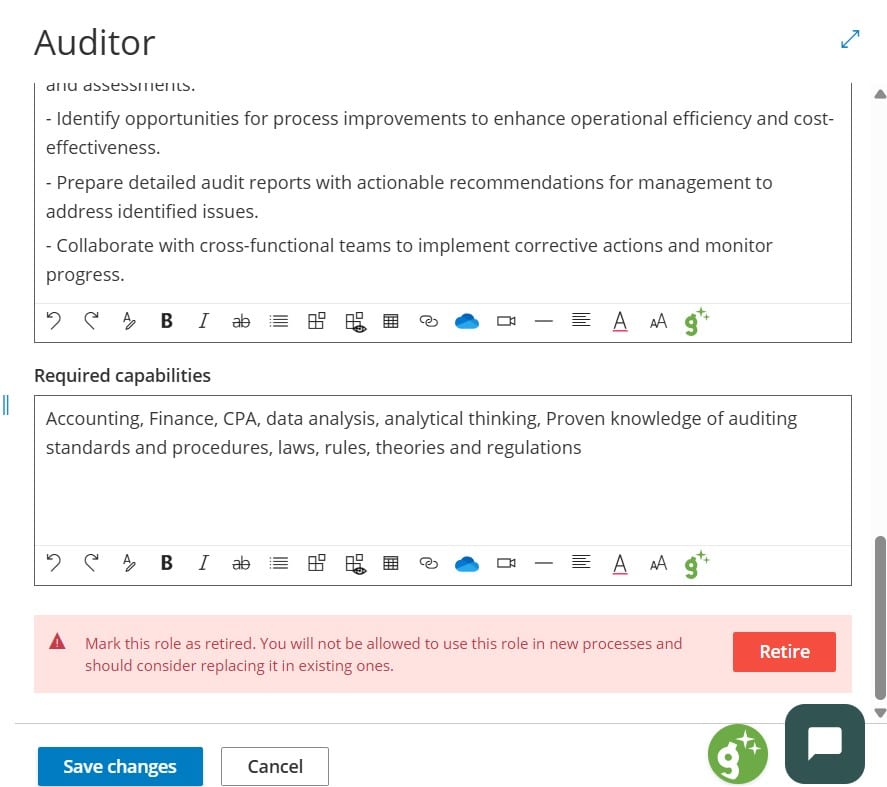
You’re done once the role is marked retired and no longer appears in role pickers for new processes.
Read more: Work with competencies · Use RACI to clarify responsibilities
FAQ – Process roles #
You need the Manage roles permission group. This is typically assigned to HR Managers and process excellence teams. It is separate from Manage processes — you can have one without the other. Ask your account administrator to assign it under Account settings > Permission Groups.
A process role describes the functional hat a person wears when performing specific activities — the skills and responsibilities required, not the org chart title. One person can hold multiple roles (e.g. Account Manager and Customer Success Manager). Keeping roles functional rather than title-based makes process maps reusable across teams and org changes.
Yes, but competencies require the HR Manager add-on. Without it, the competencies field will not appear on the role page. With the add-on enabled, you can assign required competencies and certificate levels to any role, then compare them against the actual competencies of users assigned to that role.
Retiring a role marks it as inactive so it no longer appears in role pickers for new processes — but it remains attached to existing processes and users until you manually replace it. Deleting a role removes it entirely. Retire first when you want a controlled transition; delete only when the role is no longer referenced anywhere.
Yes. When creating or editing a role, click the Gluu Assistant icon to get AI-generated suggestions for role purpose, responsibilities, and competencies. The suggestions are based on the role name and your account context. You review and accept each suggestion — nothing is applied automatically.
Open the Roles page and select the role. The role detail view shows the processes it is assigned to and the users holding the role. Use the RACI matrix on individual processes to see role responsibilities in detail across activities.


