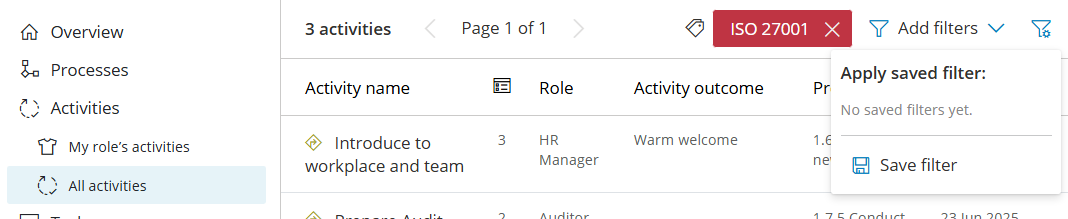
Use filters to quickly zero in on the activities, tasks, cases, components, or forms you care about. Filters persist until you change them—so you stay focused. Common filters can also be saved and shared – you can also them data matching filters to your work overview presets.
Filter types #
You can filter on almost any data in Gluu. Below we have created an overview by main functional area.
Logic tip: Adding multiple values within the same category applies AND between them; combining different categories applies OR between categories.
Activities #
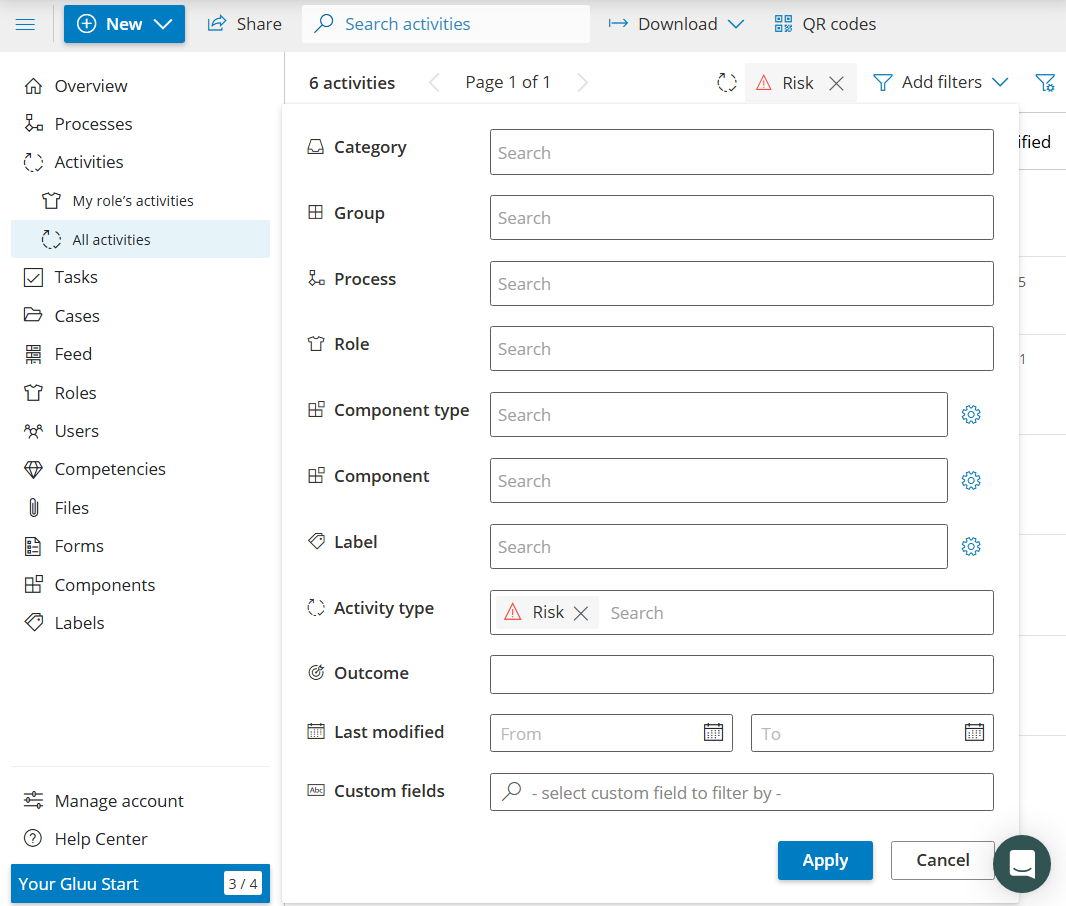
- Categories – only activities from selected category.
- Group – only activities from selected group.
- Process – activities for a specific process.
- Role – activities that involve one or more roles.
- Label – activities tagged with a specific label.
- Activity types – e.g., Risks, Customer Touch Points.
- Outcome – filter by outcome.
- Last modified – filter by last update date.
Example: All activities of the type ‘Risk’ to show risky work. Could also be done as a label, of course.
Tasks #
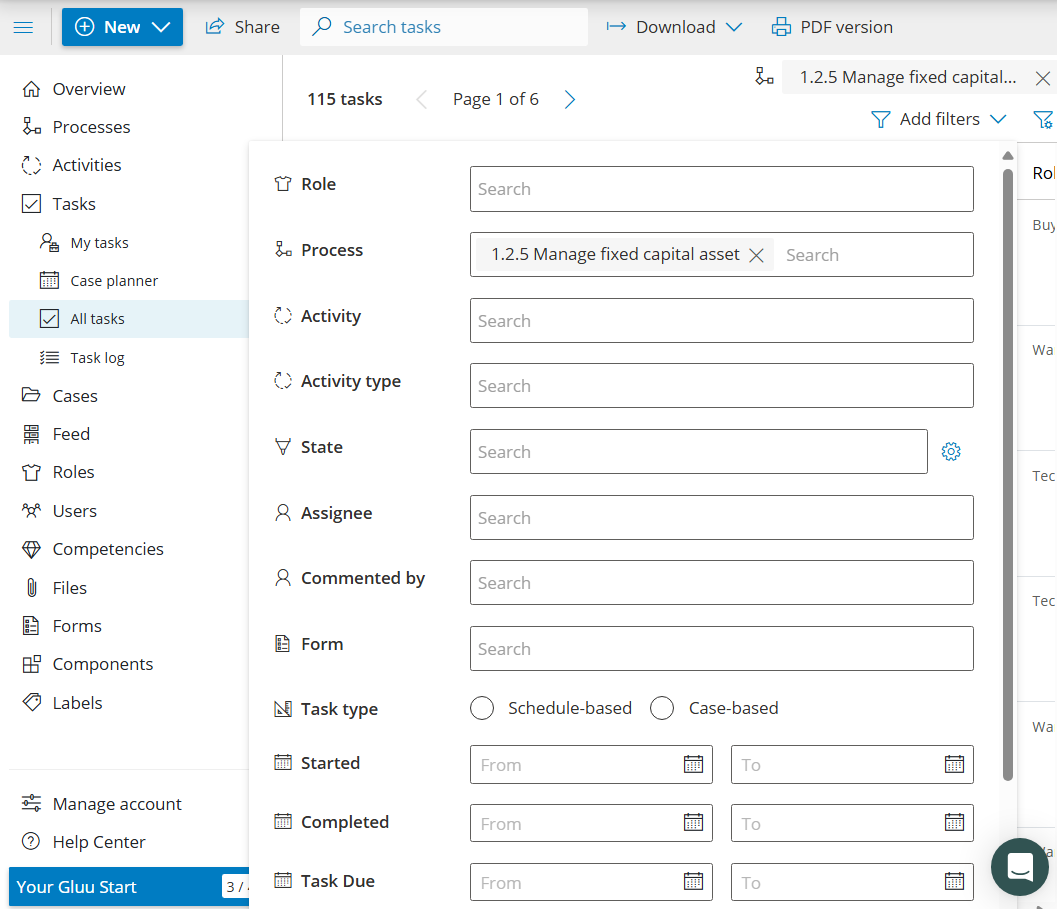
- Roles – tasks involving specific roles.
- Process – tasks for a specific process.
- Activity – tasks within a specific activity.
- Activity types – tasks from activities marked as Risks, etc.
- State – not started / in progress / completed.
- Assignee – assigned to / picked by a user.
- Commented by – tasks with comments by a user.
- Form – tasks that contain a specific form.
- Task type – schedule-based or case-based.
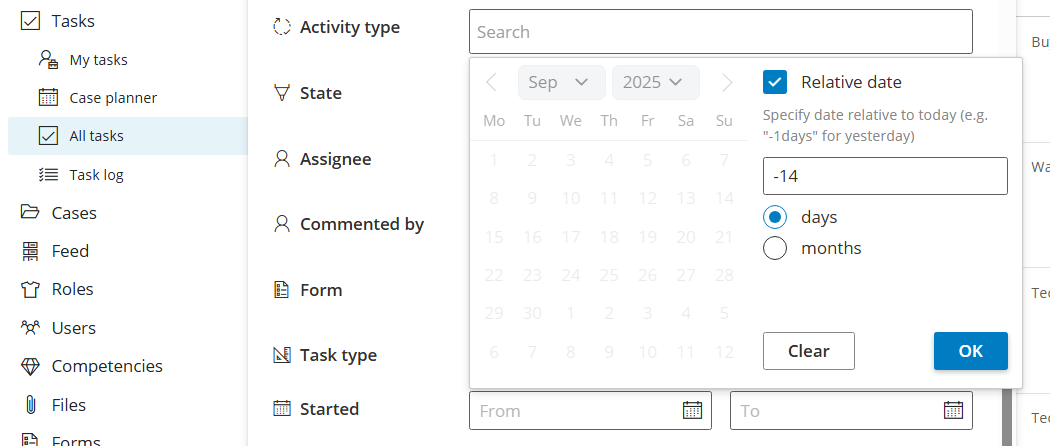
- Started, Completed, Task due – absolute or relative dates.
Example: Filtering to only show tasks within a specific process.
Cases #
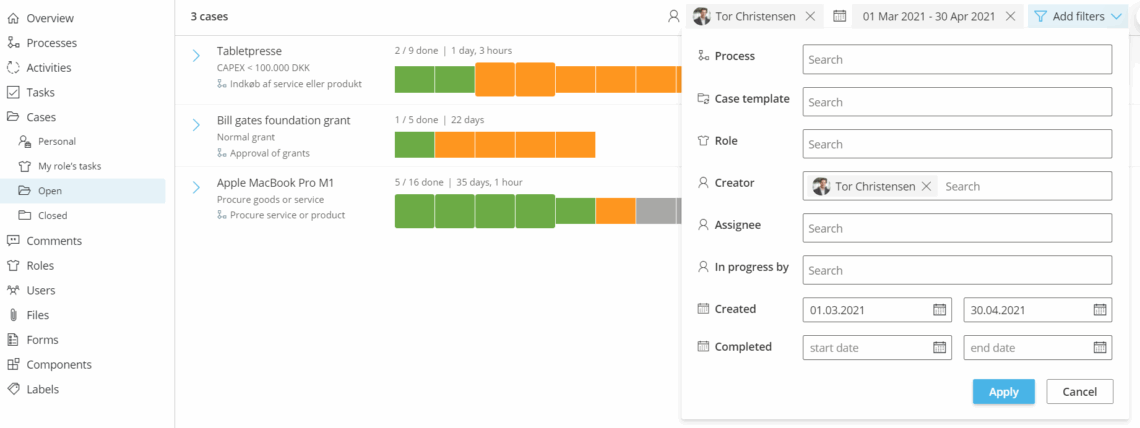
- Process – cases for a specific process.
- Case template – cases from a specific activity/template.
- Role – cases involving specific roles.
- Label – cases with a specific label.
- Form – cases that contain a specific form.
- Creator – cases created by selected users.
- Assignee / Picked by – cases for/picked by users.
- Commented by – cases with comments by a user.
- Created / Completed – date ranges.
Example: Cases created by user Tor Christensen in a set timeframe.
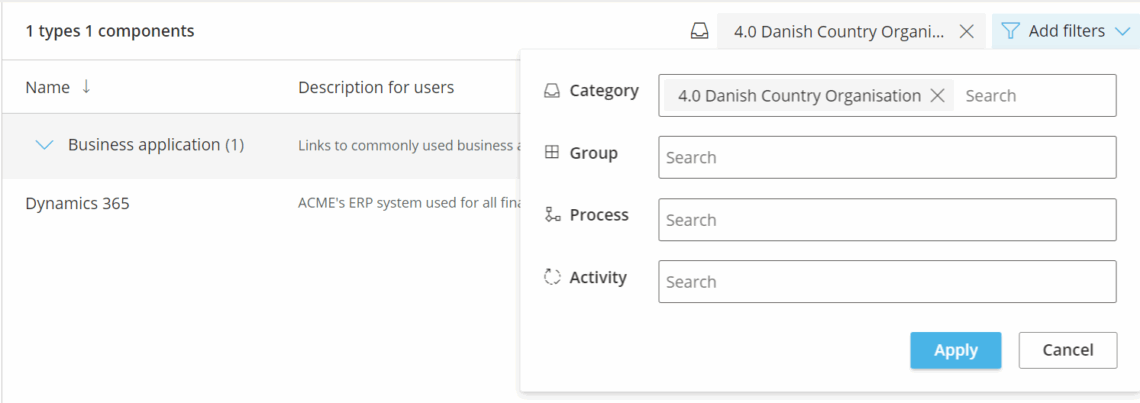
Components #
- Category – components allowed in certain process categories.
- Group – components allowed in certain process groups.
- Process – components used in specific processes.
- Activity – components used in specific activities.
By time period or date #
Presets & relative dates: Start from built-in presets like Today or Last month. Relative dates update automatically (e.g., “Today” always means today).
Filtering by forms #
Show only tasks or cases that use a specific form. Save that filter to visualize the form’s data on your Overview page or in overview presets.
Save & reuse filters #
- Click the filter settings icon (top-right of the filter bar).
- Select Save filter, name it, and (optionally) share with colleagues.
Only “Manage account” users can share filters with everyone. - Access saved filters from the same settings icon.
Pro tip: Share general filters with colleagues so everyone can access common views. Keep personal filters unshared to avoid cluttering others’ lists.