Goal: Retrieve Gluu data via API and build PowerBI reports—no coding required.
Requirements before starting:
- PowerBI Desktop for Windows.
- Manage account rights in Gluu.
Intro video #
Step 1: Find the data in Gluu #
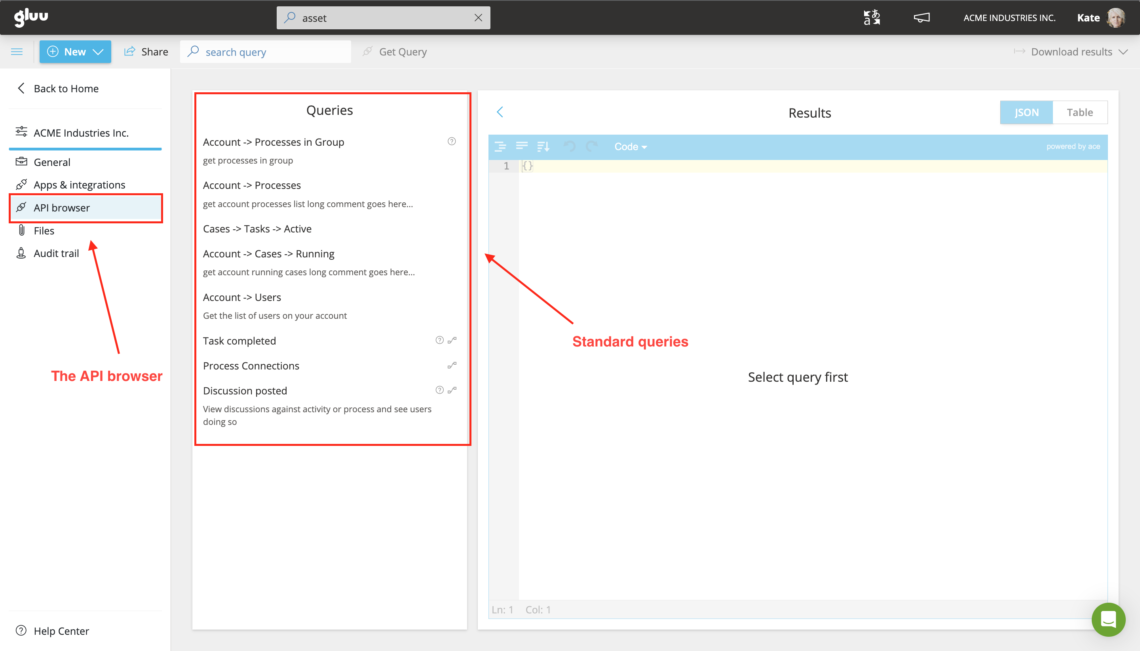
Click Manage account (lower left). Open API browser to see all available queries.

If you don’t see it, request the Manage account right.
Browse queries, then open one to preview its output.

Step 2: Get the URL and token #
Click Get Query to copy the URL and an access token.
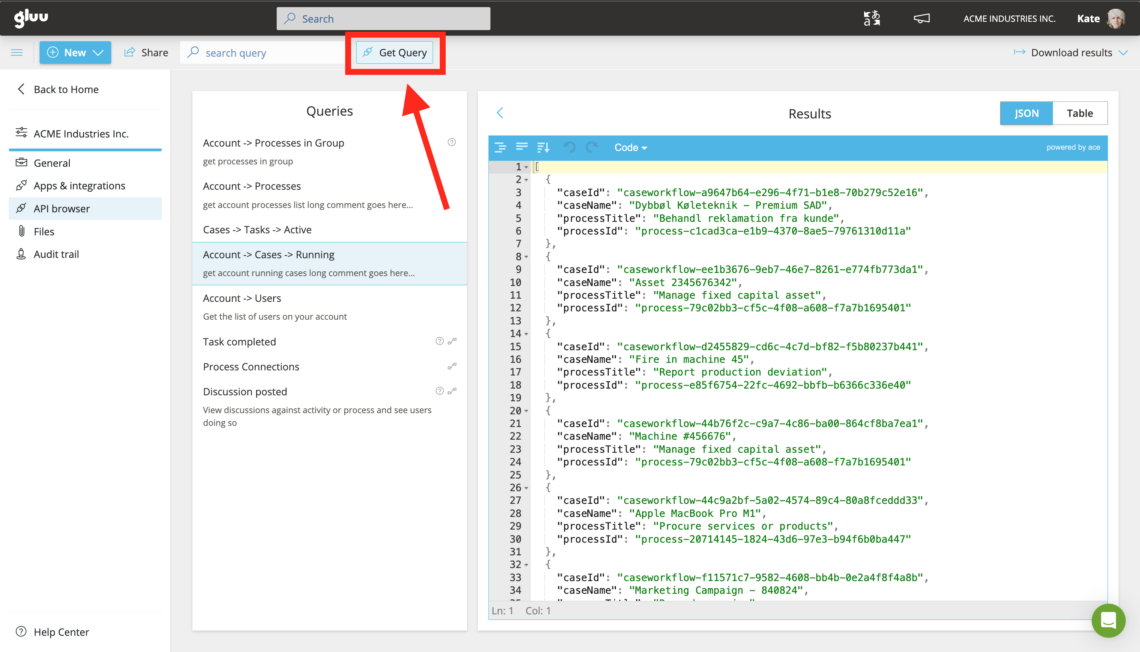

Token note: Tokens rotate for security. When it changes, refresh your PowerBI connection.
Step 3: Fetch data in PowerBI #
- In PowerBI, click Get data > Web.
- Choose Advanced.
- First URL part = the URL from Gluu.
- Second URL part =
?access_token=[your-token](do not include the word “Bearer”). - Check the URL preview, then click OK.

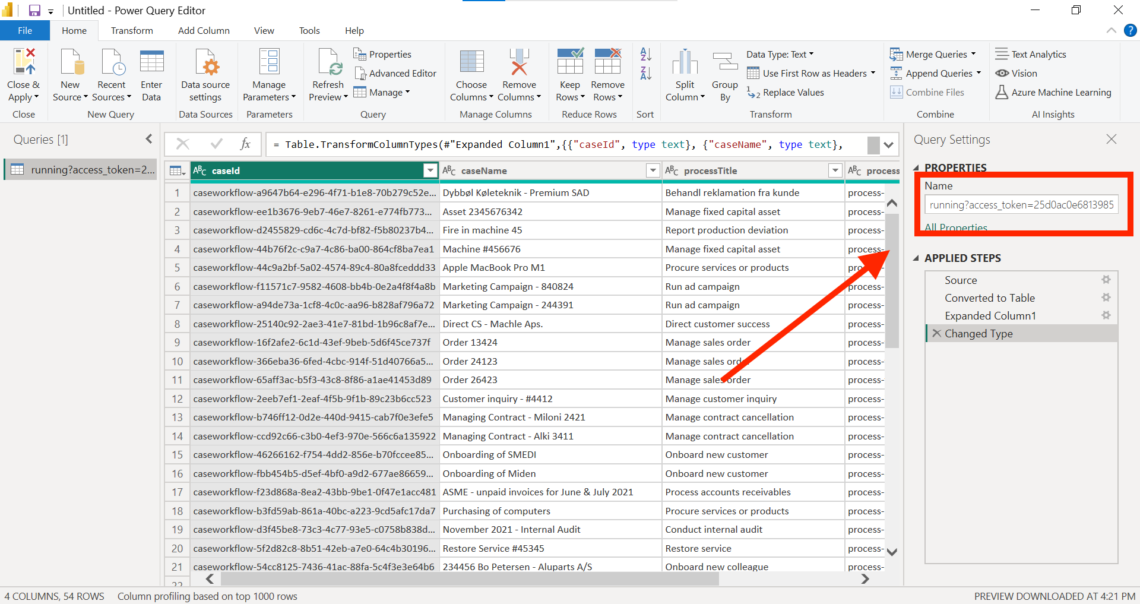
Step 4: Power Query Editor #
PowerBI opens the editor with your data in a table view. Rename the query to something clear (e.g., All cases) and click Close & Apply.

Step 5: Visualize the data #
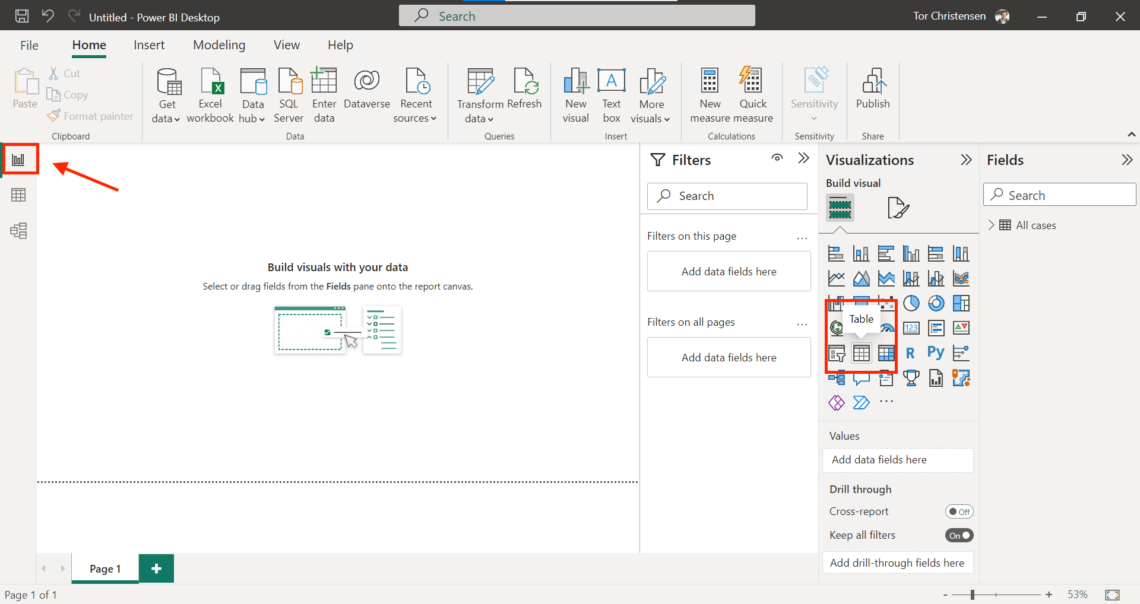
- Go to Report.
- Add a Table visual.
- Open the All cases dataset and check caseName.