
Goal: Save all case files (templates, reports, forms, photos) from Gluu to your SharePoint structure—automatically and consistently.
What you’ll learn…
- Select the SharePoint site and folder to use.
- Define folder/file naming at account level or case template level.
- Start cases and sync files automatically.
- Keep SharePoint and Gluu in sync at all times.
Before you start #
- Plan: SharePoint case-file sync requires the API & Connectors add-on.
- Role: You need the Manage account permission to set the account-wide SharePoint standard. Process owners and editors can configure template-level overrides.
- Setup: Your Azure AD Tenant ID must already be configured in Gluu—see SSO configuration guide.
Two levels of setup #
- Account-wide standard – default for all caseflows.
- Template-level standard – override per case template when different sites/folders/naming are required.
Set your account’s SharePoint standard #
- Click your company name (top right) > Manage account.
- Under General settings, add your Azure AD tenant ID.

Step 3: Check connection:

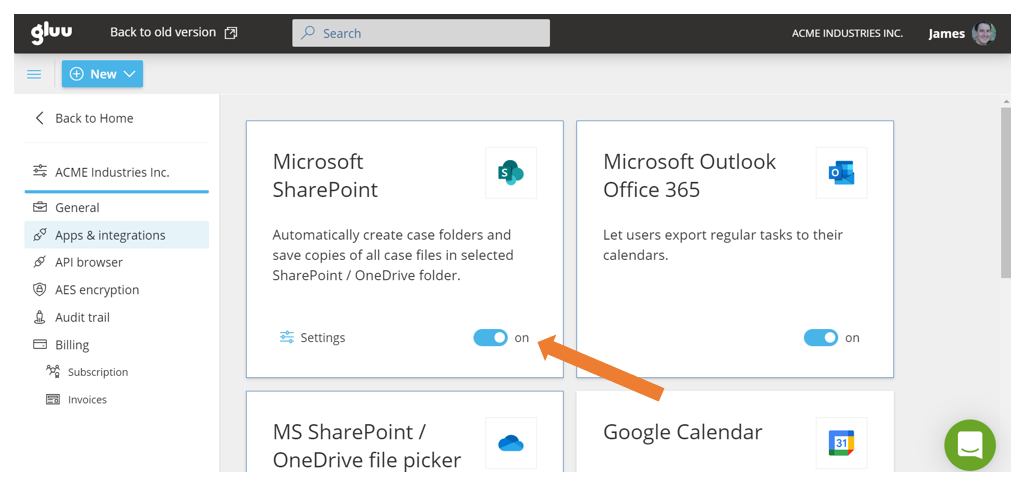
Step 4: Go to Apps & Integrations and turn on Microsoft SharePoint.
Step 5: Configure folder and naming:
- Root folder – SharePoint site/folder where Gluu creates case folders.
- Case folder naming – default is case name (e.g., “Peter Smith 243567324”).
- Activity folder naming – default is activity name.
- File naming – defaults: forms = “task name – form name”; uploads/photos = task number + sequence.

Review the preview of the folder structure, then Save.

You’re done once the preview shows the folder structure you expect and you’ve saved it.
Set process-specific standards #
- Open the process > Cases > Case Templates.
- Enable edit mode and select a case template.
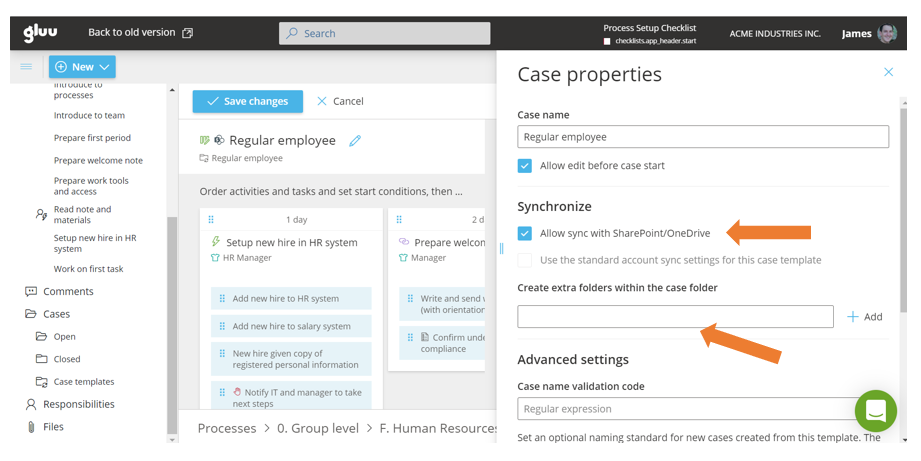
- Under Synchronize, turn on Allow sync with SharePoint/OneDrive.
- (Optional) Add extra folders within the case folder.
Then, for any activity in the case:
- Adjust activity folder name, select files to export, and add extra folders if needed.

All new cases from this template will mirror your SharePoint structure.
You’re done once the template’s cases preview shows the SharePoint folders and files you configured.
Running cases #
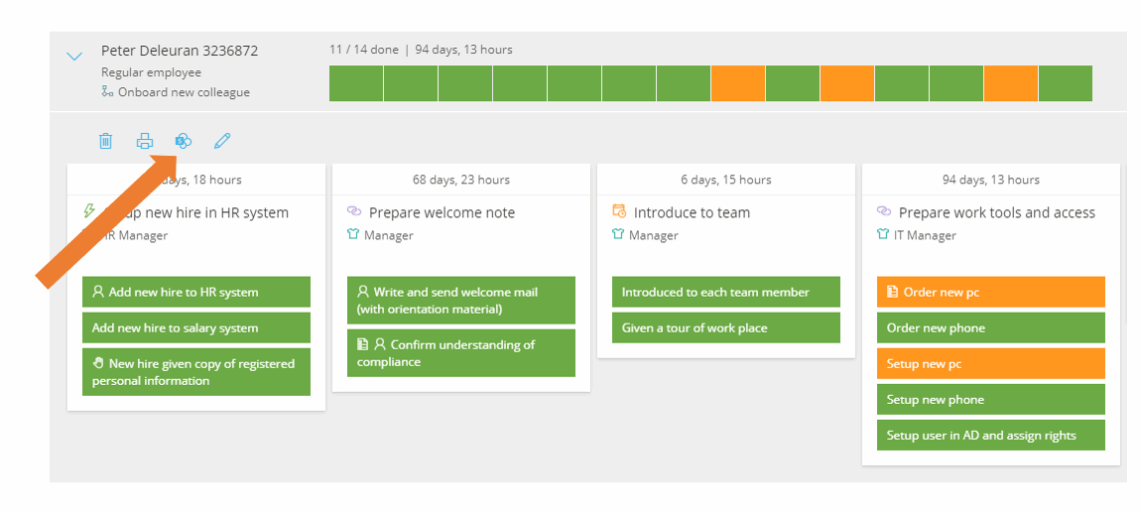
When a user starts a case, files are saved to SharePoint automatically. If SharePoint is temporarily unavailable, click the SharePoint icon on the case to sync now and open the case folder.

You’re done once the case folder opens in SharePoint with the synced files.
FAQ – Syncing case files to SharePoint #
SharePoint case-file sync requires the API & Connectors add-on. It isn't included in the Core, Essential, or Advanced plan on its own.
The account-wide standard is the default SharePoint site, folder structure, and naming used by all case flows. A template-level standard overrides that default for a specific case template when it needs a different site, folder, or naming pattern.
You need the Manage account permission to set the account-wide SharePoint standard, including the Azure AD tenant ID and root folder. Process owners and editors can configure template-level overrides on their own case templates.
Files are saved to SharePoint automatically once it's reachable again. If SharePoint is temporarily unavailable, click the SharePoint icon on the case to sync now and open the case folder.
Yes. You can set the root folder, case folder naming (default: case name), activity folder naming (default: activity name), and file naming (forms default to "task name – form name"; uploads and photos default to task number plus sequence).


