
Goal: The Gluu MCP integration lets you connect AI chat tools such as Claude, ChatGPT or Microsoft Copilot directly to Gluu using the Model Context Protocol (MCP). Once connected, you can query processes, activities, and roles from your AI chat interface.
Before you start #
- Plan: MCP integration is in beta and available for select customers at no confirmed price yet. Contact support@gluu.biz to request access.
- Role: Any user with a Gluu login (username/password or Microsoft SSO) can connect and query their own accessible data – no special permission is required.
- Setup: Have a Claude (claude.ai) or ChatGPT account ready before you start. For Microsoft Copilot, you also need access to Microsoft Copilot Studio with permission to create agents – check with your Microsoft 365 administrator.
What is MCP? #
MCP (Model Context Protocol) is an open standard that lets AI chat tools connect to external tools and data sources. The Gluu MCP integration (beta) exposes your Gluu account data – processes, activities, roles, and more – directly to your AI chat tool.
Beta disclaimer: MCP integration is currently in beta. Commercial terms are not yet finalised – this feature may be introduced as a paid add-on in the future. Pricing has not been determined. We will communicate any changes before they take effect.
Beta functionality is available for select customers. Contact support@gluu.biz if you would like to have access.
Prerequisites #
- A Gluu login (username and password, or Microsoft SSO)
- A Claude account (claude.ai), a ChatGPT account, or Microsoft 365 with access to Copilot Studio (or another AI chat tool that supports MCP).
Connect in Claude (claude.ai) #
- Click Customize in the Claude interface.
- Click Connectors.
- Click the + icon
- Click on … Add custom connector.
- Enter Gluu as the name.
- Enter the URL: https://api.gluu.biz/mcp
- Ignore Advanced settings.
- Click Add.
- When prompted to log in, follow the steps in the Logging in to the Gluu MCP server section below.
You’re done once Gluu appears as a connected tool and responds to a question in your chat.
Connect in ChatGPT #
Note: Developer mode is required to create and configure custom MCP apps in ChatGPT.
- Go to Settings > Apps > Advanced settings and turn on Developer mode.
- Click the Create app button at the top of the page.
- Enter Gluu as the name.
- Enter the MCP server URL: https://api.gluu.biz/mcp
- Check the I understand and want to continue checkbox.
- Click Create. After a short moment, the app will be available.
- When prompted to log in, follow the steps in the Logging in to the Gluu MCP server section below.
- Once authenticated, Gluu will appear in your enabled apps list. Return to your ChatGPT chat window to start using it.
You’re done once Gluu appears in your enabled apps list and responds to a question in your chat.
Connect in Microsoft Copilot #
In Microsoft 365, you connect Gluu by adding the Gluu MCP server as a tool on an agent in Microsoft Copilot Studio. You then publish the agent to Microsoft 365 Copilot and Teams, where you and your colleagues can chat with it.
Note: You need a Microsoft 365 Copilot or Copilot Studio license and permission to create agents in Copilot Studio. Your organisation’s Power Platform data policies must also allow MCP connectors.
Add Gluu to a Copilot Studio agent #
- Go to copilotstudio.microsoft.com and sign in with your work account.
- Open an existing agent, or select Create > New agent. Give the agent a name, for example Gluu assistant, and instructions such as “Use the Gluu tool to answer questions about our processes, activities and roles.”
- Go to the Tools page and select Add a tool > New tool > Model Context Protocol.
- Enter Gluu as the server name.
- Enter a server description, for example “Read-only access to our processes, activities and roles in Gluu.” Copilot uses the description to decide when to call the tool.
- Enter the server URL: https://api.gluu.biz/mcp
- Under authentication, select OAuth 2.0 and keep Dynamic discovery selected. Select Create, then Next.
- Select Create a new connection. When prompted to log in, follow the steps in the Logging in to the Gluu MCP server section below.
- Select Add to agent.
- In the tool’s settings, set Credentials to use to End user credentials. This way each person signs in with their own Gluu account and only sees the Gluu data they have access to.
- Ask a question in the agent’s test chat, for example “Which processes do I own?”
You’re done once the test chat answers with data from your Gluu account.
Make the agent available in Microsoft 365 Copilot and Teams #
- Select Publish to publish the agent.
- Select Channels > Teams and Microsoft 365 Copilot.
- Make sure Make agent available in Microsoft 365 Copilot is selected, then select Add channel.
- Select See agent in Teams > Add to install the agent for yourself.
- To share the agent with colleagues, select Availability options and copy the link, or show it to your organisation (this requires approval from your Microsoft 365 administrator).
You’re done once the Gluu agent appears in your agent list in Microsoft 365 Copilot and answers a question about your Gluu data. Colleagues are asked to sign in to Gluu the first time they use the agent.
Microsoft references: Connect your agent to an existing MCP server · Connect and configure an agent for Teams and Microsoft 365 Copilot
Logging in to the Gluu MCP server #
This authentication flow applies to Claude, ChatGPT and Microsoft Copilot. When prompted to log in, you will be taken through the following steps:
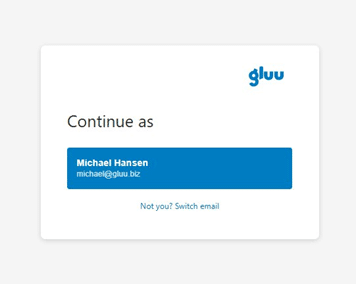
- A Choose account screen will appear. Select your Gluu account and click Continue to complete authentication.
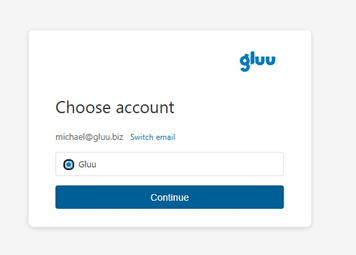
Note: Use your Microsoft account if your organisation uses Microsoft SSO, or your Gluu username and password if you log in directly.
You’re done once you’re redirected back to your AI chat tool and it shows as authenticated.
What you can do #
Once the Gluu MCP integration is set up, you can ask your AI chat tool questions about your Gluu data, for example:
- “Summarize our process hierarchy in Gluu”
- “What is my role as defined in Gluu?”
- “Which processes do I own?“
Limitations (beta) #
- Read-only access. Write operations are not supported.
- Form data submission via MCP is not supported. Forms must be completed by users directly in Gluu.
- MCP support in AI chat tools is actively evolving; steps may vary by platform version.
- In Microsoft Copilot, Gluu is available through a Copilot Studio agent, not directly in the standard Copilot chat. Your organisation’s Microsoft 365 and Power Platform settings decide who can create and share agents.
- Beta functionality is available for select customers. Contact support@gluu.biz if you would like to have access.
FAQ – Gluu MCP integration #
It's a beta connection between Gluu and AI chat tools such as Claude, ChatGPT or Microsoft Copilot, built on the Model Context Protocol (MCP). Once connected, you can ask your AI chat tool questions about your Gluu processes, activities, and roles.
It's currently in beta and available to select customers, with commercial terms and pricing not yet finalized. Contact support@gluu.biz to request access, and Gluu will communicate any pricing changes before they take effect.
No. The integration is read-only during the beta – it can retrieve data such as processes, activities, and roles, but write operations and form submissions are not supported. Forms must still be completed by users directly in Gluu.
Use your Microsoft account if your organization uses Microsoft SSO, or your Gluu username and password if you log in directly. The same authentication flow applies whether you're connecting from Claude, ChatGPT or Microsoft Copilot.
Add the Gluu MCP server (https://api.gluu.biz/mcp) as a Model Context Protocol tool on an agent in Microsoft Copilot Studio, using OAuth 2.0 with dynamic discovery. Then publish the agent to the Teams and Microsoft 365 Copilot channel, and chat with it from Microsoft 365 Copilot or Teams.
Not if you set the Gluu tool's Credentials to use option to End user credentials. Each colleague then signs in to Gluu with their own account the first time they use the agent and only sees the Gluu data they already have access to.
You can ask things like "Summarize our process hierarchy in Gluu," "What is my role as defined in Gluu?" or "Which processes do I own?" – the AI chat tool queries your live Gluu data to answer.


