
Goal: View and export a chronological record of account activities to investigate incidents and changes.
Gluu’s audit trail lists account events with time, user, action and target—filterable and exportable.
Before you start #
- Plan: The audit trail requires the Enterprise Security add-on. It is not included in the Core, Essential, or Advanced plan on its own.
- Role: Account Owner/Admin (Manage account) rights are required to view or export the audit trail.
- Setup: No special setup—open Manage account > Audit Trail once the add-on is enabled.
How to use it #
- Go to Manage account > Audit Trail.
- Set a time period (e.g., around a suspected incident).
- Browse events to find what you need.
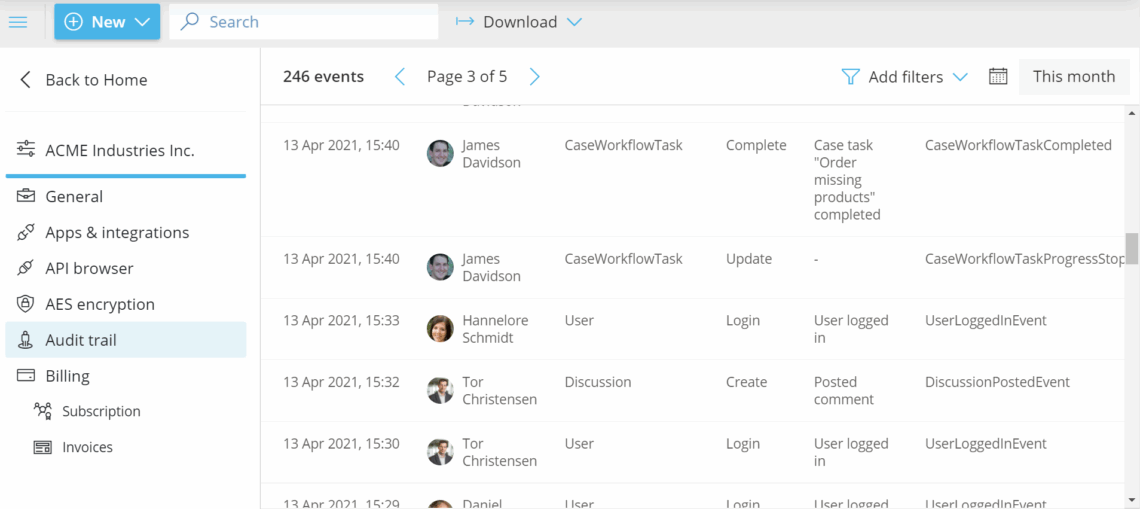
You’re done once you’ve located the events for the time period you set.
Export and filter #
- Export the selected period to CSV or JSON via Download.
- Filter by User, Target, Action or Description.

You’re done once you’ve downloaded the CSV or JSON export, or narrowed the list to the events you need.
FAQ – Track activity via audit log #
The audit trail requires the Enterprise Security add-on. It is not included in the Core, Essential, or Advanced plan on its own.
Only users with Account Owner/Admin rights (the Manage account permission) can view or export the audit trail.
Each entry lists the time, the user who performed the action, the action itself, and the target it was performed on—giving you a chronological record you can use to investigate incidents and changes.
Yes. Set the time period you want to review, then use Download to export the selected period as CSV or JSON.
Filter by User, Target, Action, or Description, and set a narrower time period around when you suspect the event occurred—this is especially useful when investigating a specific incident.


