
Goal: Design, publish, and maintain forms that capture data during task completion—on desktop or mobile.
Use forms to digitize registrations and collect data via phone, tablet, or PC. Forms can be attached to any task in any activity. Access the form builder from your profile menu in the top-right of Gluu.
1. Create a form #
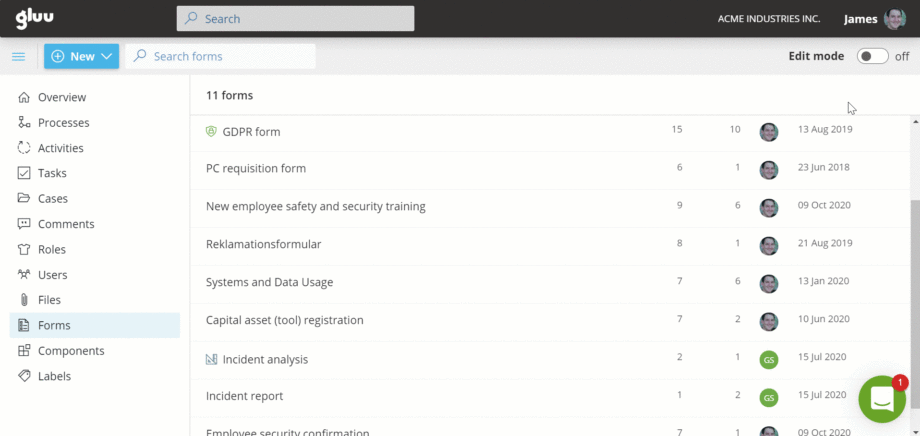
Manage all forms under Forms in the left menu. Only users with form management rights can create/edit/delete forms. Process owners and editors can attach published forms to tasks.
- Click Add to create a new form, then turn on Edit mode.
- Enter a Name and Description.
- Drag-and-drop elements to arrange.
- Configure each element and mark fields as Required where needed.
- Use the trash icon to remove an element. (Historic submissions remain unchanged.)
- Use Duplicate to reuse elements within or across forms.
- Preview the form, then Save.
Form tools and fields #
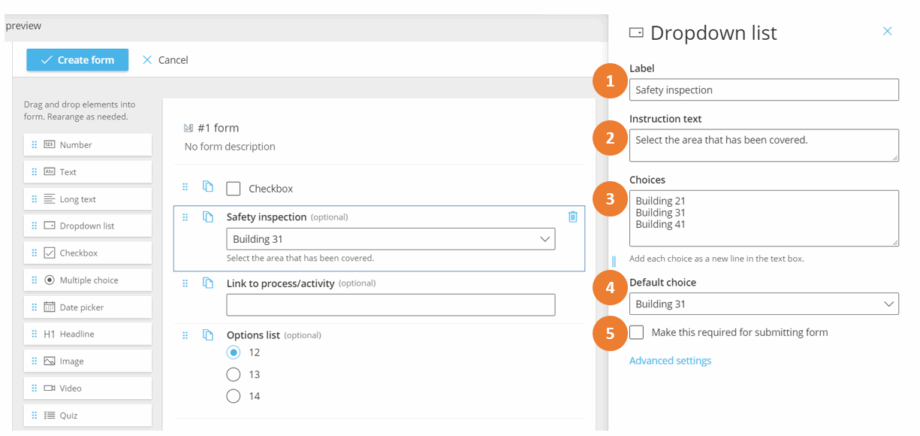
Set the forms properties:
- Label (field name).
- Instruction (helper text),
- Choices (for dropdowns),
- Default choice, and
- Required.
Form field options #
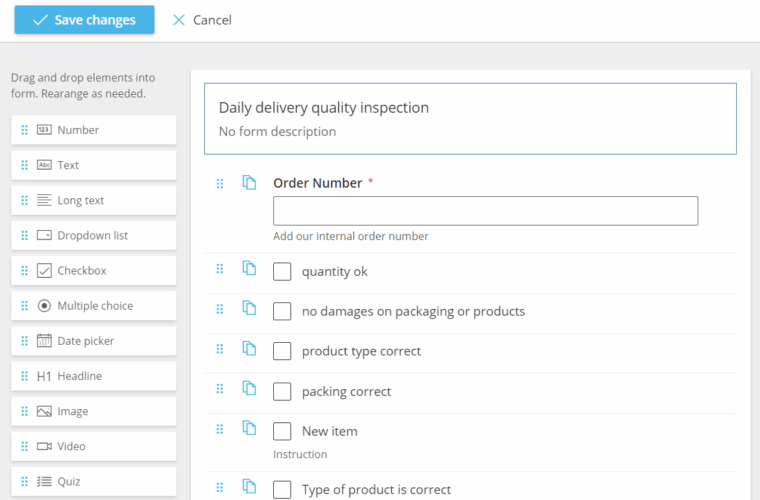
Number (digits only)
Text (short)
Long text
Dropdown list (options you define)
Checkbox (checklists)
Multiple choice (single selection)
Date picker
Headline (text-only)
Image
Video (embed via <iframe>)
Quiz (multiple-choice with correct answer(s))
Gluu lookup (limit answers to users/processes/cases)
Competence (skills/certificates)
Form (embed another form)
HTML (Rich formatted text or link)
Example: A training form with video + quiz questions.

Conditional fields (advanced) #
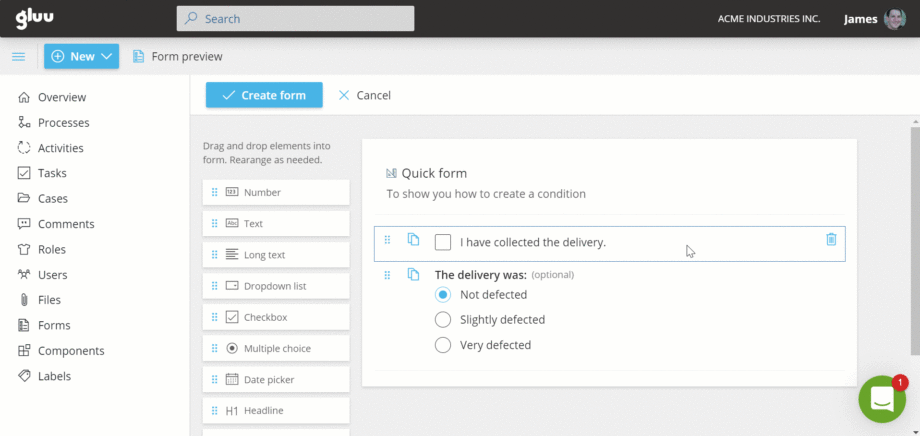
- Add the field that should only appear when a condition is met.
- Open Advanced settings and select the controlling field.
- Set the value that triggers the field to show.
Example: Show a multiple-choice question only if a checkbox is ticked.
2. Publish form #
Toggle the form to On to publish (green indicator). Turn it Off to hide from task editors (grey indicator).
3. Adding forms to tasks #
Any task, scheduled recurring or case-based, can have a form added to be filled by the user as part of task completion.
To add a form to an existing task, you have to:
- Go to the task manager of the activity where the task is located
- Turn on edit mode
- Go to the ‘Form’ option in the task drawer
- Choose the form on the dropdown list that should be added to the task
- Click save
The dropdown list of forms show all available forms and the list is searchable – start typing and the list is filtered based on what you type. Remember, only published forms will show on the list!
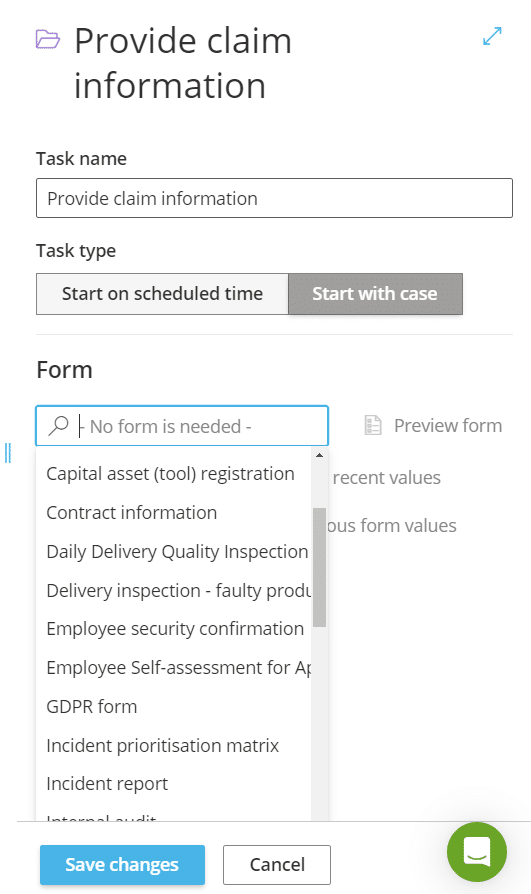
The form has now been added to you task and you will see it in the task manager.

Prefill feature #
When adding a form to a task, you have the option of using our prefill feature that allows you to reuse form data previously entered into a form. The form data used for prefill is always only data from the form template you used on the task, not other forms you have in Gluu. In the example below (picture), the form data would therefore always be from filled versions of the ‘internal audit’ form template.
Using the prefill feature helps you get rid of redundant retyping of the same information into a new form. For instance, it lets you correct data typed in previously by reusing that data in a new form and letting the user edit the relevant fields in the form., e.g. incorrect customer contact info in a claims form. It also lets you pass on information from colleague to colleague easily, so they do not have to refer to a previous task in a case. They will have the information readily available as they are solving their own task and can just continue the work started by a colleague and simply add to it.
There are two possible settings for this feature (shown on picture below) and you manage them on the task(s) where you have used the form:
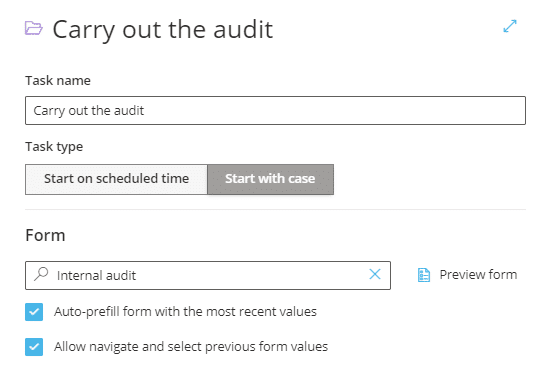
- Auto-prefill recent values from the same form in the same case (users can edit before submitting).
- Let user choose a previous version from this or other cases using the form.
- If both are enabled, the most recent fills automatically; users can switch to another version.
Note: The first time a form is used there’s nothing to prefill. Submit once to generate reusable data


