Goal: Save all case files (templates, reports, forms, photos) from Gluu to your SharePoint structure—automatically and consistently.
What you’ll learn…
- Select the SharePoint site and folder to use.
- Define folder/file naming at account level or case template level.
- Start cases and sync files automatically.
- Keep SharePoint and Gluu in sync at all times.
Two levels of setup #
- Account-wide standard – default for all caseflows.
- Template-level standard – override per case template when different sites/folders/naming are required.
Set your account’s SharePoint standard #
- Click your company name (top right) > Manage account.
- Under General settings, add your Azure AD tenant ID.

3) Check connection:

4) Go to Apps & Integrations and turn on Microsoft SharePoint.
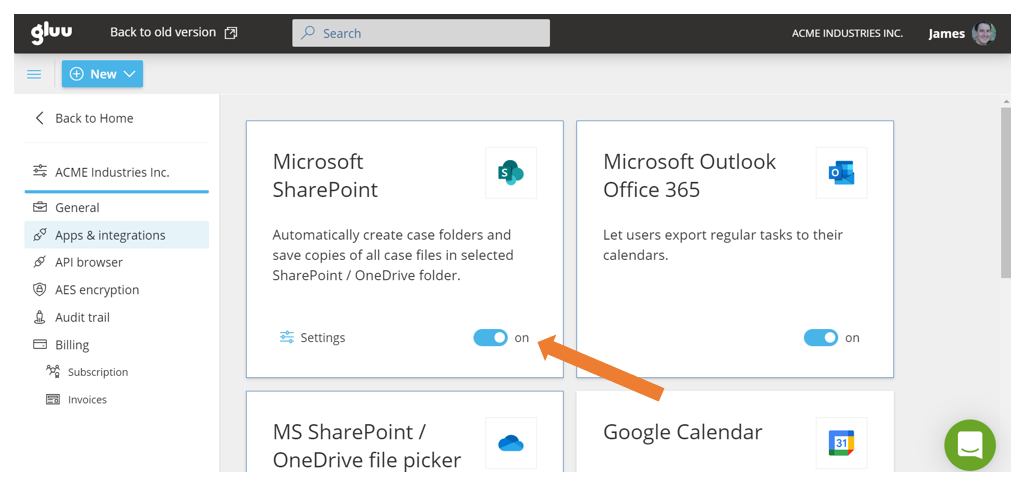
5) Configure folder and naming:
- Root folder – SharePoint site/folder where Gluu creates case folders.
- Case folder naming – default is case name (e.g., “Peter Smith 243567324”).
- Activity folder naming – default is activity name.
- File naming – defaults: forms = “task name – form name”; uploads/photos = task number + sequence.

Review the preview of the folder structure, then Save.

Set process-specific standards #
- Open the process > Cases > Case Templates.
- Enable edit mode and select a case template.
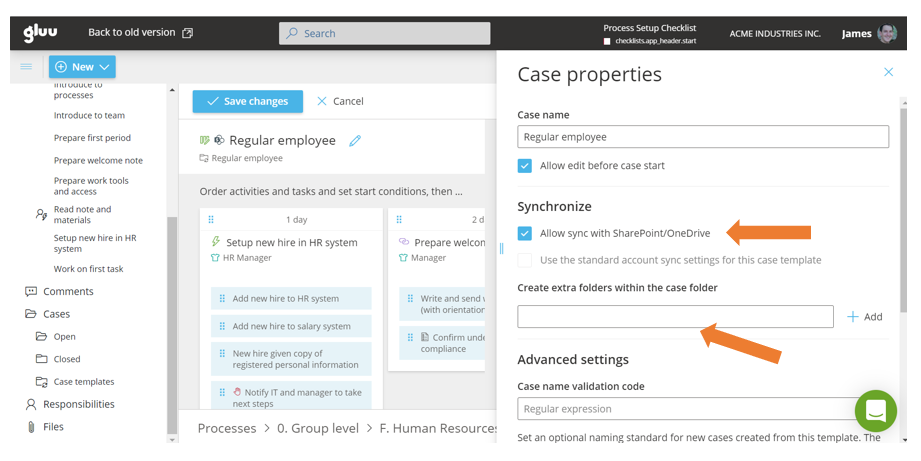
- Under Synchronize, turn on Allow sync with SharePoint/OneDrive.
- (Optional) Add extra folders within the case folder.
Then, for any activity in the case:
- Adjust activity folder name, select files to export, and add extra folders if needed.

All new cases from this template will mirror your SharePoint structure.
Running cases #
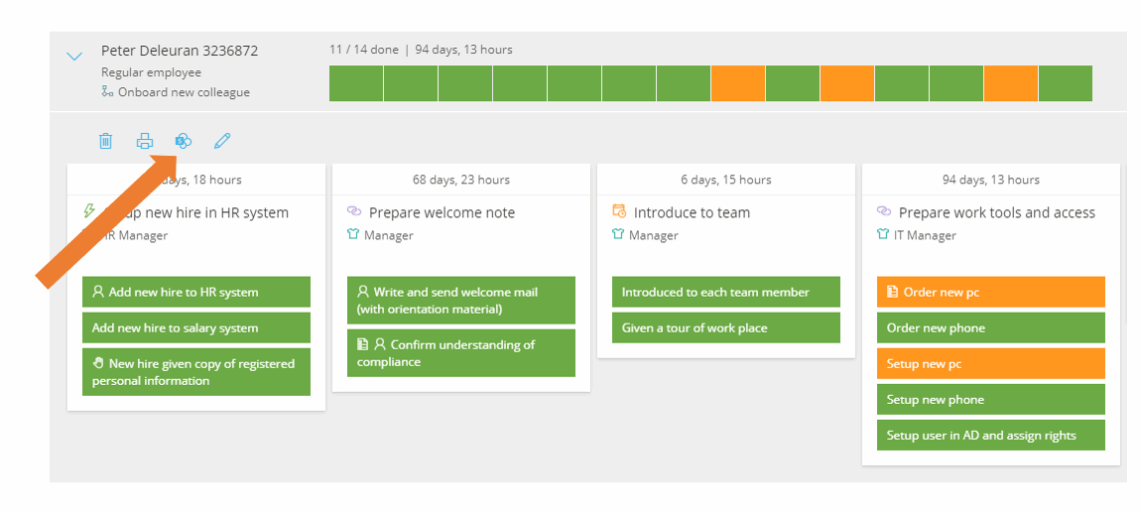
When a user starts a case, files are saved to SharePoint automatically. If SharePoint is temporarily unavailable, click the SharePoint icon on the case to sync now and open the case folder.