
Communication
QR code work instructions that start the right case
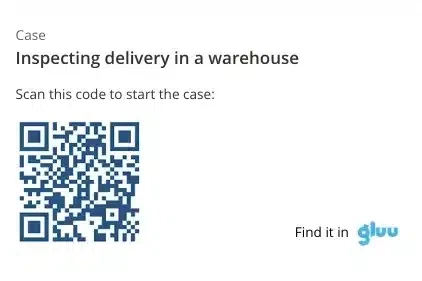
QR code work instructions turn a printed label into instant access. Gluu generates a QR code and a shortlink for every Process, Activity and Case, so scanning a label with the mobile app opens the matching work instruction - or starts a new Case - once Gluu has confirmed that the person is authorized.
What it is
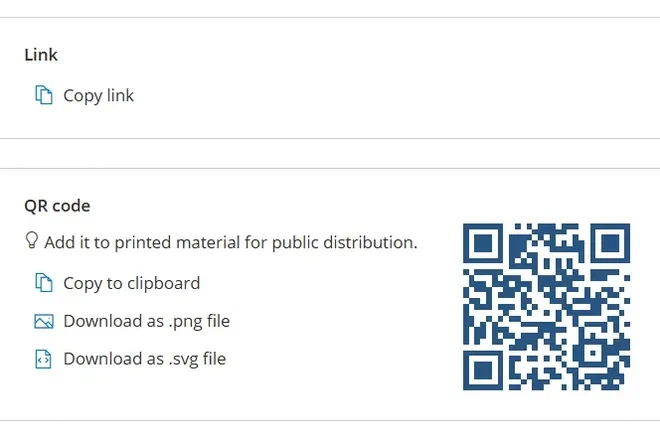
QR codes and shortlinks are how Gluu’s communication features reach people who are not sitting at a desk. Every Process, Activity and Case has a Share panel with a copyable link and a QR code - copy the code to the clipboard, or download it as a PNG or SVG file that goes straight into printed material.
The code points at the page in Gluu, not at a copy of it. When a work instruction is updated, every label already printed and posted keeps opening the current version. Access follows the same permissions as the rest of Gluu, so a label on a shared machine is not an open door: an authorized person goes straight in, and anyone else is asked to sign in first.
Why it matters
Standard work, one scan away from the machine
Nobody works from an outdated printout
A laminated instruction on the wall is out of date the moment someone improves the process. A QR label points at the live page instead, so the version people follow is the version you published this morning, and nobody has to maintain two copies of the same instruction.
Reports start where the problem is
A defect spotted on a machine at 06:40 usually gets reported hours later, if at all. A label on that machine starts the non-conformity Case on the spot, with the right template, the right fields and a photo - instead of a note someone means to type up at the end of the shift.
Access without handing out extra logins
Every scan is checked against the same Role and permission model as the rest of Gluu. People who should see the instruction go straight to it, and people who should not cannot open it, even with the code in hand. Printed labels never become a way around your access rules.
How it works
How do QR codes work in Gluu?
Copy the link or download the code
Open Share on any Process, Activity or Case. The Link panel gives you a copyable link to send in a message or an email. The QR code panel copies the code to the clipboard or downloads it as a PNG or SVG file, sized for printed material.
Print a batch as labels
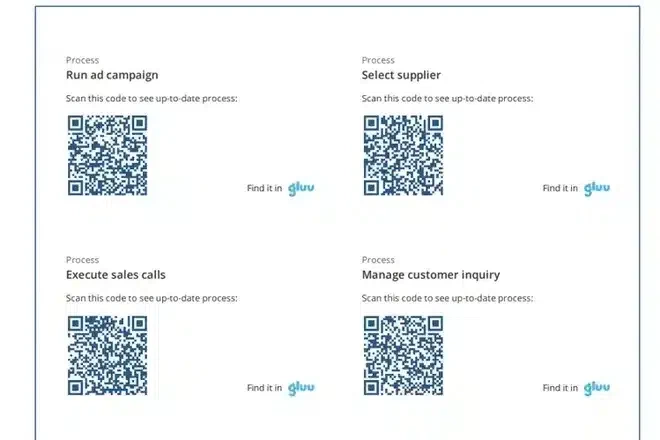
Filter a list of processes or activities - all of them, or only the ones a role is responsible for - and click QR codes. Gluu returns a PDF laid out eight labels per A4 sheet, each label naming the process, instruction or case it opens.
Scan to open or to start a case
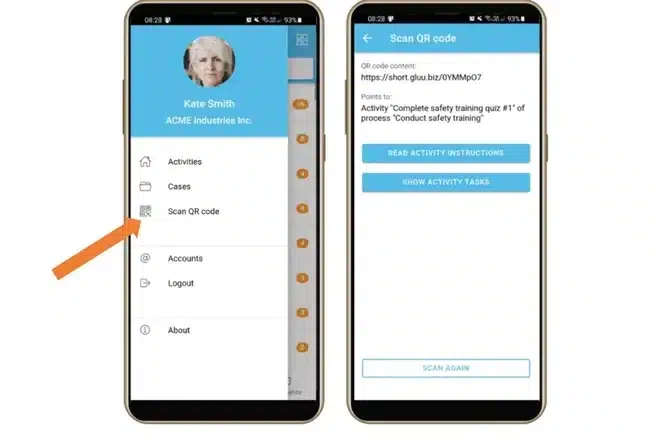
The Gluu mobile app has a built-in scanner in its menu. A scan names what the code points to, then opens the work instruction, the activity’s tasks or the Case the label was made for - once Gluu has checked that the person scanning has access to it.
Availability
Frequently asked questions
Do people need a Gluu login to scan a QR code?
Can a scan start a case automatically?
How many QR labels can I print at once?
What happens to a printed label when the instruction changes?
Where do QR labels work best?
All Features