
Case & project management
Sync case folders to SharePoint automatically
SharePoint case folder sync automatically creates a SharePoint folder for every Case and Activity, applies the naming standard you’ve set, and clones the Case Template’s document templates into place - so every Case keeps a synced, backed-up copy of its files in SharePoint, with nothing built by hand.
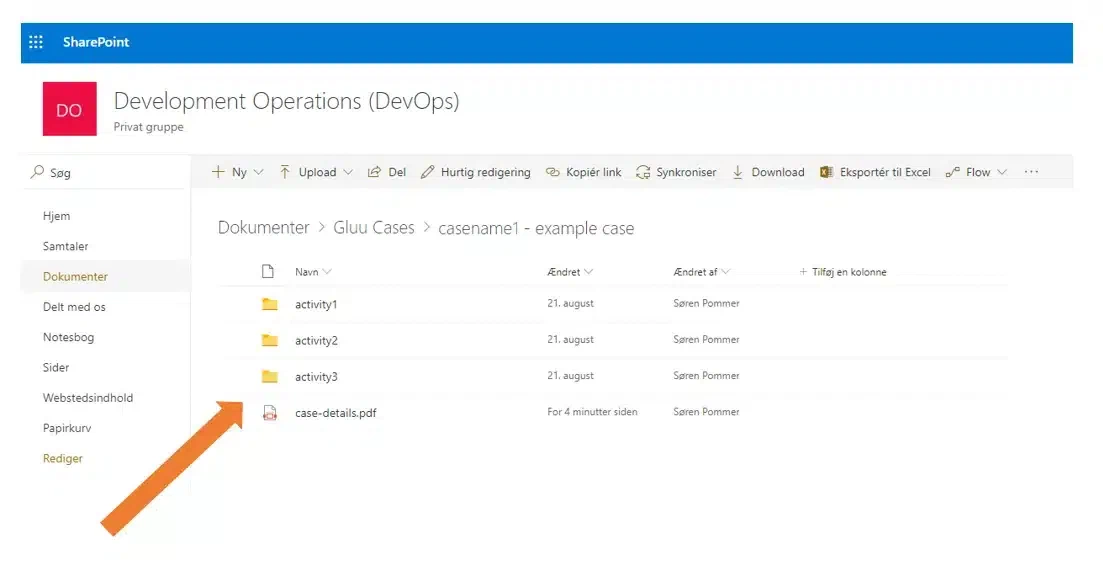
What it is
SharePoint case folder sync connects a Gluu Case Template to a SharePoint site. When someone starts a Case, Gluu creates a matching Case folder - and a subfolder for every Activity inside it - in SharePoint automatically, following the naming standard you’ve configured.
It works alongside Gluu’s wider case and project management features: the Case itself still runs in Gluu, with named task owners, live progress and an audit trail. SharePoint becomes the synced, browsable copy of the files that Case produces - forms, reports, photos and document templates - for teams and auditors who already work out of SharePoint.
Why it matters
One governed source, not two copies drifting apart
One naming standard, every case follows it
When folders get built by hand, every case ends up named a little differently and SharePoint quietly drifts from what actually happened in Gluu. Case folder sync keeps both in step, using one naming standard for every case and activity.
A backup and audit trail without a manual export
Every form, report and photo captured on a case task lands in the matching SharePoint folder as it’s produced - a synced copy you can point auditors, subcontractors or your backup policy at, without a separate export step.
No SharePoint training required to stay organized
Folder and file names follow the standard you set once, at account level or per case template - so colleagues never have to learn a naming convention or remember where a case’s files belong.
Outcomes
100+
new employees onboarded to standardized processes
Doubled in size
since 2019, without losing process discipline
Every phase mapped
offer, design, planning and execution, standardized
“In Gluu, we can - throughout the process - see whether activities have been done and where work is not moving. We can also see who is responsible for the specific activities.”
Hans Jørgen Ebbesen, CEO, CJ A/S
How it works
How does SharePoint case folder sync work in Gluu?
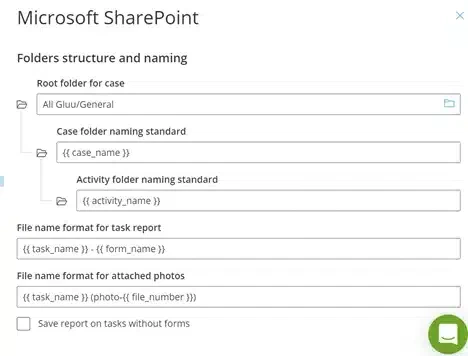
Set your naming standard once
Add your organization’s Azure AD tenant ID, turn on Microsoft SharePoint under Apps & Integrations, then set the root folder and the case, activity and file naming standard every new case should use by default.
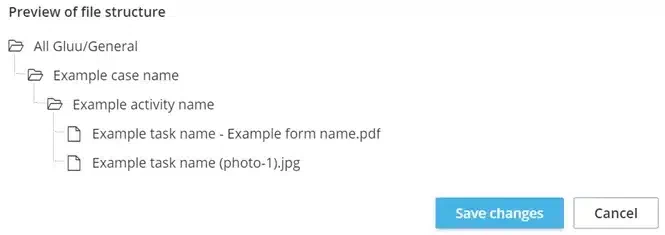
Preview the folder tree before you save it
Gluu shows exactly what it will create in SharePoint before anything changes - case folder, activity subfolders and file names - so there are no surprises the first time a case runs.
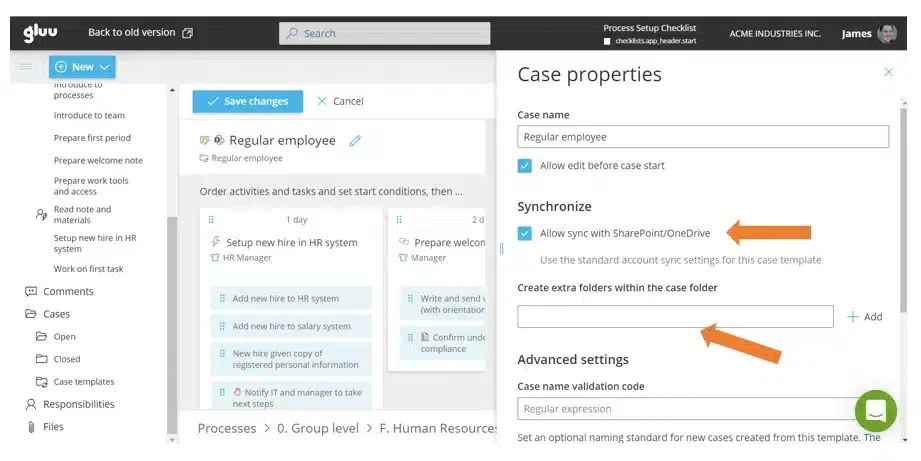
Turn sync on per case template
Override the account standard for one process: open its Case Template, switch on Allow sync with SharePoint/OneDrive, and add extra folders if that case needs them. Every case started from that template - and its document templates - follows the same structure automatically.
Availability
Frequently asked questions
Does Gluu replace SharePoint, or just organize what’s already in it?
What happens to the sync if SharePoint is temporarily unavailable?
Can different case templates use different SharePoint folders or naming?
What exactly gets synced to SharePoint?
Is SharePoint case folder sync included in my Gluu plan?
Do I need Azure AD to connect SharePoint?
All Features